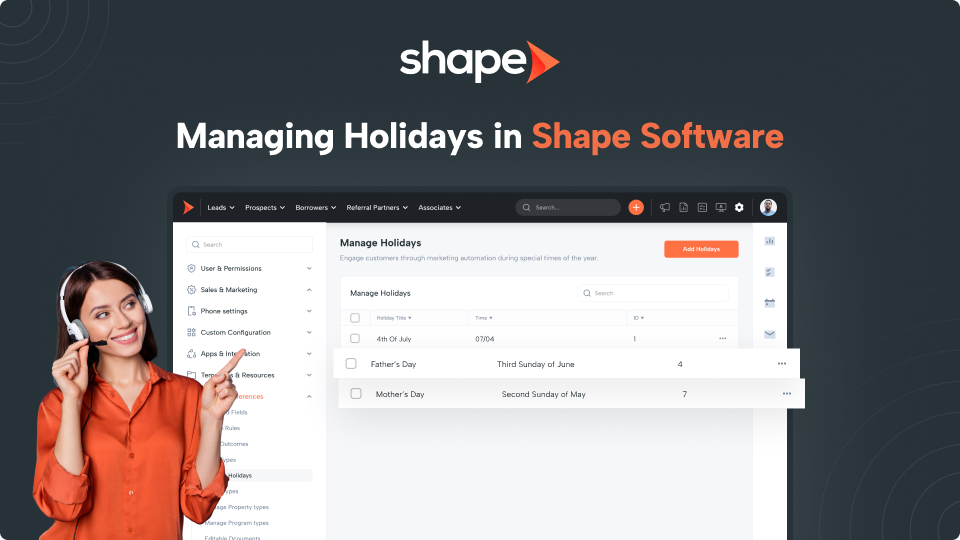
Holidays can be set up in the system along with triggers to send out communication information to your clients. We have the typical holidays already set up for you, but sometimes other holidays are observed that aren’t already in the system and you may want to add them. This done from the "Manage Holidays" settings page.
Start by navigating to “Settings” in the top navigation bar. Next click the dropdown labeled “System Preferences” to find the “Manage Holidays” settings page.
Manage Holidays: https://secure.setshape.com/manage-holidays
You can also edit the existing holidays in your system or delete them entirely using the “...” icon on the righthand side.
You will select whether the holiday is on a specific date or if it falls on a certain day. For a certain day you can choose between every, first, second, third, or last and then choose the day of the week and what month it occurs in.
You can also set up triggers for the new Holiday that send out communication to your clients. Navigate to Settings>Automated Actions (Trigger) linked here You can create a new trigger and set the appropriate information for this trigger.
Your trigger type would be “Holidays”, you’ll then select the holiday you just created in the Manage Holidays settings page as the trigger. Your “Action Type” would be to “Send Email”, and then you’ll select the template you’ve created for this holiday in the Email Templates settings page. You can then select the delay. We usually set these to go out at 9am on the day of the holiday.
Keywords: holiday, trigger, communication, email template, automation, personalize, add holiday
Changing templates will take time and may require a template change fee.
Not sure what to choose? Contact us.