Table of Contents
Support Guide
User Availability Controls in Shape Software
-
Shape Software
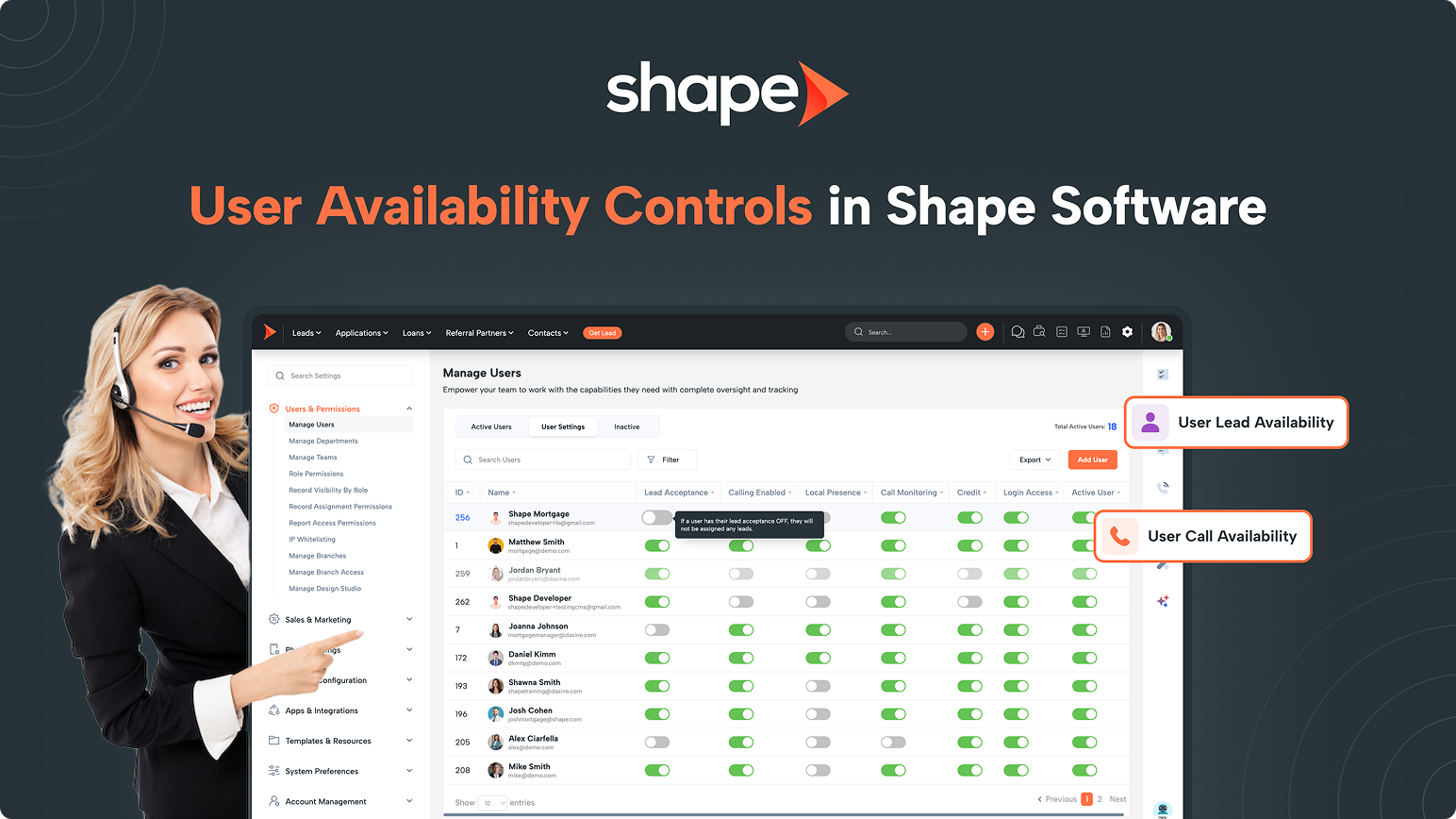
Learn how to use User Availability Controls in Shape Software to manage Lead Availability and Call Availability, control lead assignments and inbound calls, understand availability indicators, and configure user permissions.
User Availability Controls in Shape Software
User Availability Controls help administrators and users manage when team members are available to receive new leads and phone calls.
Whether someone is away from their desk, attending a meeting, on vacation, or simply needs to pause new work temporarily, User Availability Controls make it easy to update their availability without affecting existing records or workflows.
Shape Software includes two independent availability settings:
- User Lead Availability controls whether a user is eligible to receive new lead assignments.
- User Call Availability controls whether a user is available to receive and make phone calls.
Because these settings operate independently, organizations have complete flexibility in deciding how users receive work throughout the day.
What Is User Lead Availability?
User Lead Availability determines whether a user is eligible to receive new automatic lead assignments.
When Lead Availability is enabled, the user participates in automatic lead distribution based on your organization's assignment rules.
When disabled, Shape Software temporarily excludes the user from supported automated assignment methods while allowing administrators to continue assigning records manually if needed.
Lead Availability is useful when a user is temporarily unavailable but should retain ownership of their existing records.
What Is User Call Availability?
User Call Availability controls whether a user is available to receive inbound calls and participate in Shape's calling features.
When Call Availability is turned off, the user is skipped during call routing while your configured call flow continues normally.
This allows organizations to temporarily remove users from incoming call rotation without disrupting the overall phone workflow.
Understanding the Two Availability Controls
Although both settings relate to user availability, they serve different purposes and can be managed independently.
User Lead Availability
Turn User Lead Availability off when you want to temporarily stop receiving new automatic lead assignments while continuing to work your existing records.
This setting affects lead distribution methods such as Round Robin, QuickFire, and Trigger Assignments, but does not prevent administrators from assigning records manually or users from claiming records from Shark Tank.
Common examples:
- You're catching up on your current pipeline.
- You're attending a meeting or training.
- You're going on vacation.
- You don't want to receive new leads for a period of time.
User Call Availability
Turn User Call Availability off when you're temporarily unavailable to handle phone calls.
This removes you from inbound call routing and call blasts while allowing your organization's configured call flow to continue to voicemail, AI, forwarding destinations, or other routing rules.
Common examples:
- You're stepping away from your desk.
- You're on another call.
- You're having phone or headset issues.
- You're unavailable to answer inbound calls.
They Work Independently
Lead Availability and Call Availability are completely separate settings, allowing you to control lead assignments and phone availability independently.
For example:
- You can pause new lead assignments while continuing to receive phone calls.
- You can continue receiving new leads while temporarily opting out of phone calls.
- You can enable or disable either setting without affecting the other.
This flexibility allows each user to manage their workload while ensuring leads and calls continue to be distributed appropriately.
Where to Manage User Availability
User Lead Availability
Users can manage their own Lead Availability from the profile picture menu in the upper-right corner of Shape Software.
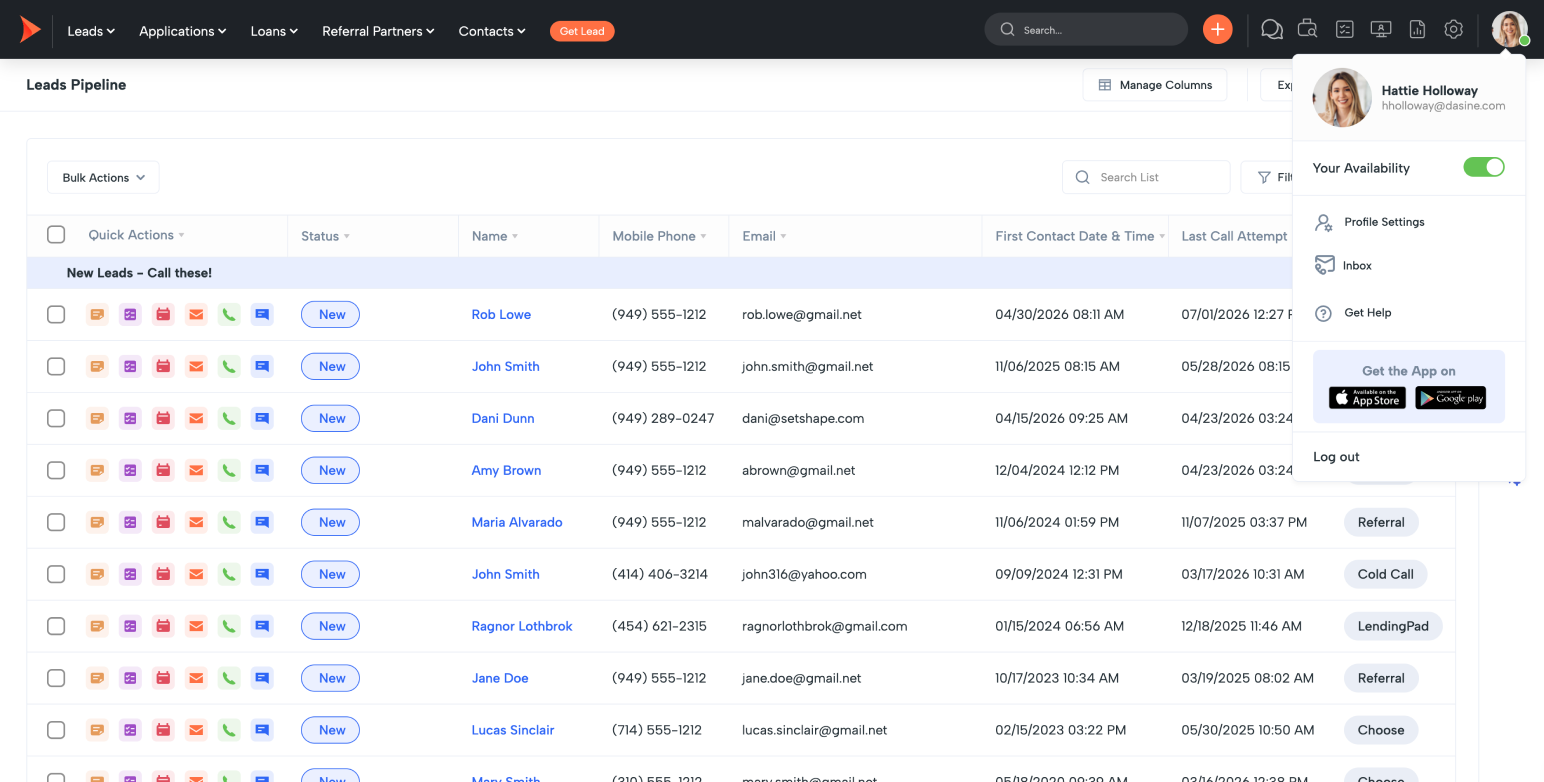
If permitted by your organization's role permissions, users can quickly enable or disable Lead Availability at any time.
User Call Availability
Users can manage Call Availability from the Dialer slideout.
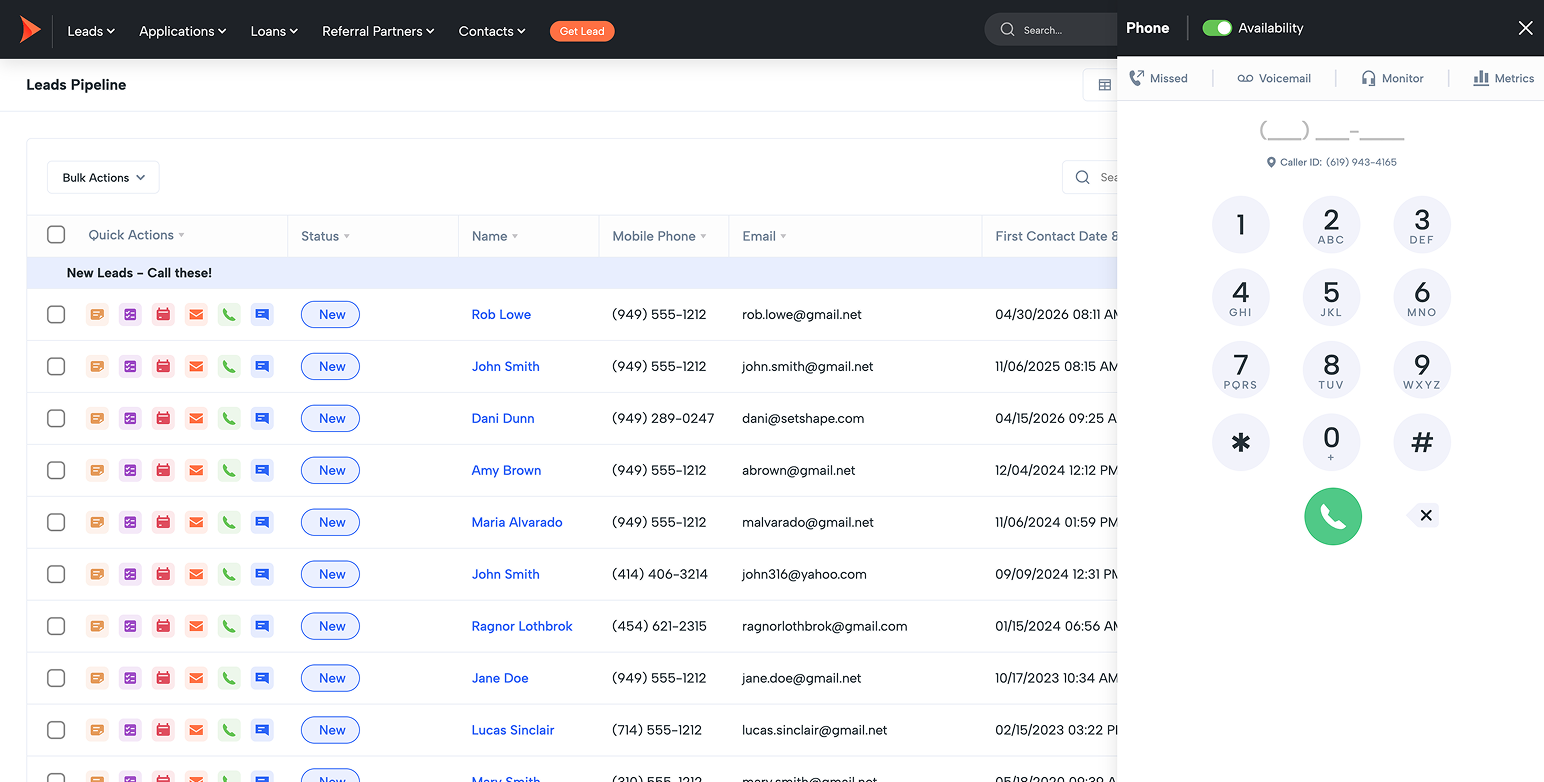
This allows users to quickly control whether they are participating in phone activity without affecting their Lead Availability.
Administrator Controls
Administrators and authorized managers can update availability for other users from:
Settings → Manage Users
Administrators can enable or disable both User Lead Availability and User Call Availability directly from the toggles on the User Settings list page.
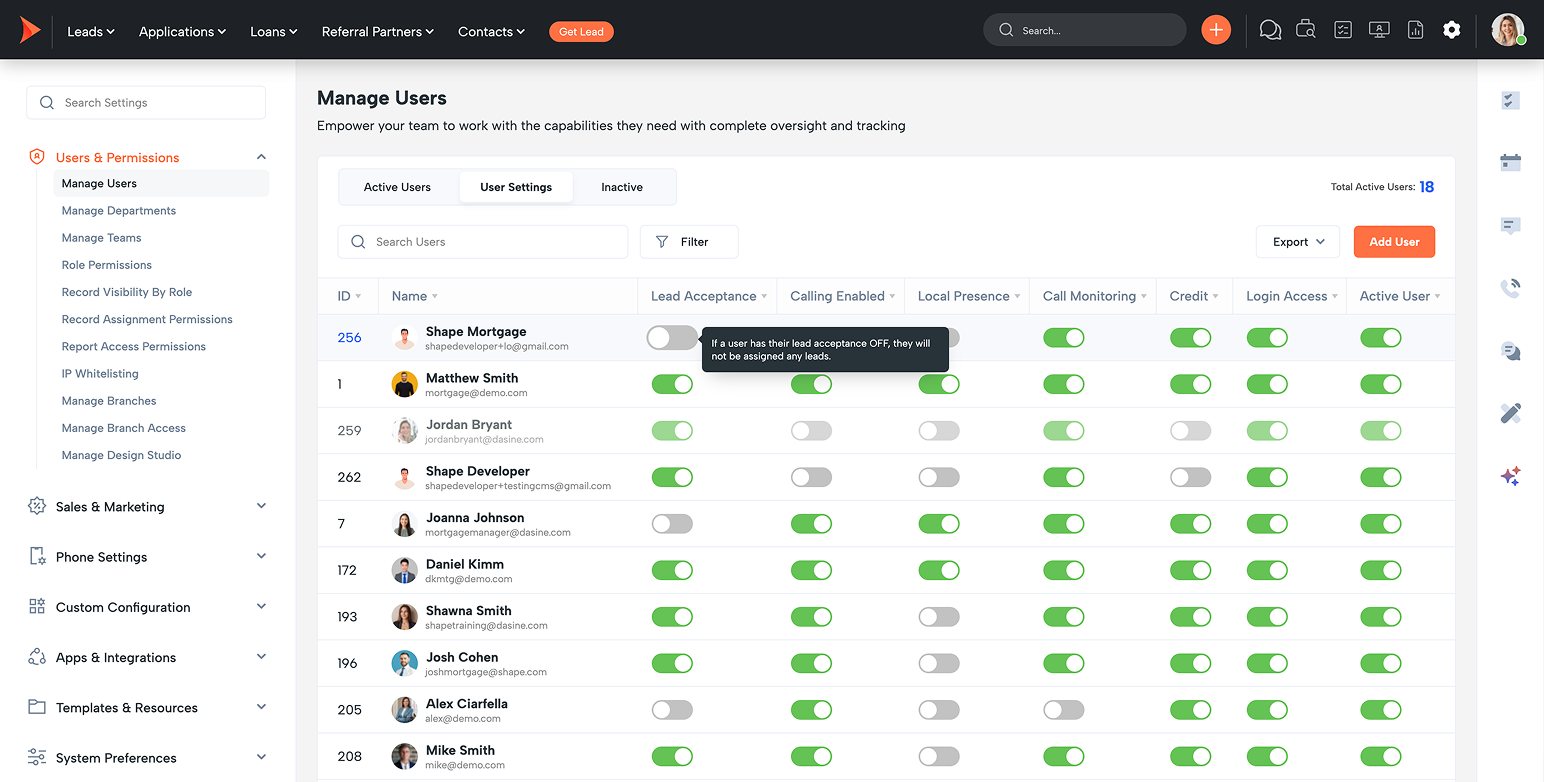
Organizations can also disable users' ability to manage their own availability through Role Permissions, allowing administrators to maintain full control over these settings.
What Happens When User Lead Availability Is Turned Off?
When Lead Availability is disabled:
- The user no longer receives automatic lead assignments.
- Round Robin skips the user.
- QuickFire skips the user.
- Trigger-based lead assignments skip the user.
- Shark Tank remains available.
- Records can still be manually assigned.
- Bulk Assignments continue to work.
- Certain external integrations, such as LOS assignment updates, may continue assigning records depending on how the integration is configured.
Turning off Lead Availability does not remove ownership of existing records.
It simply pauses future automatic lead assignments until Lead Availability is turned back on.
What Happens When User Call Availability Is Turned Off?
When Call Availability is disabled:
- The user no longer receives inbound calls.
- The user is skipped in call queues.
- Call routing continues according to your configured call flow.
- Calls may continue to voicemail, AI, forwarding destinations, or other configured routing rules.
- The user can still access the webphone interface.
- Existing call flows continue operating normally.
Disabling Call Availability temporarily removes the user from phone activity without affecting the rest of the organization's phone system.
Lead Availability Indicator
Shape Software includes a visual availability indicator that makes it easy to see whether a user is currently accepting new lead assignments.
A colored status indicator appears on each user's profile picture.
Green Indicator
Lead Availability is enabled.
The user is eligible to receive automatic lead assignments.
Red Indicator
Lead Availability is disabled.
The user is temporarily unavailable for automatic lead assignment.
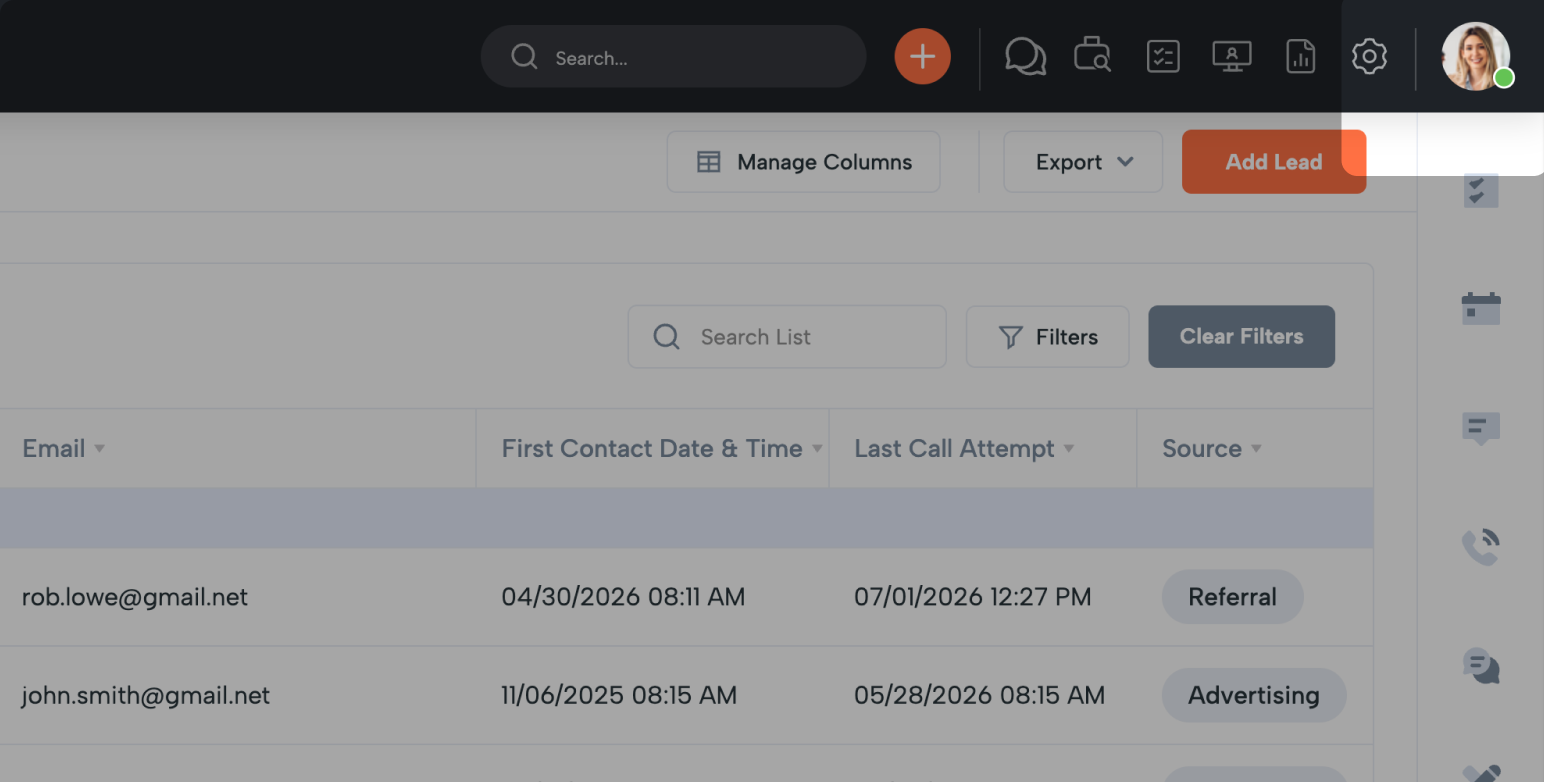
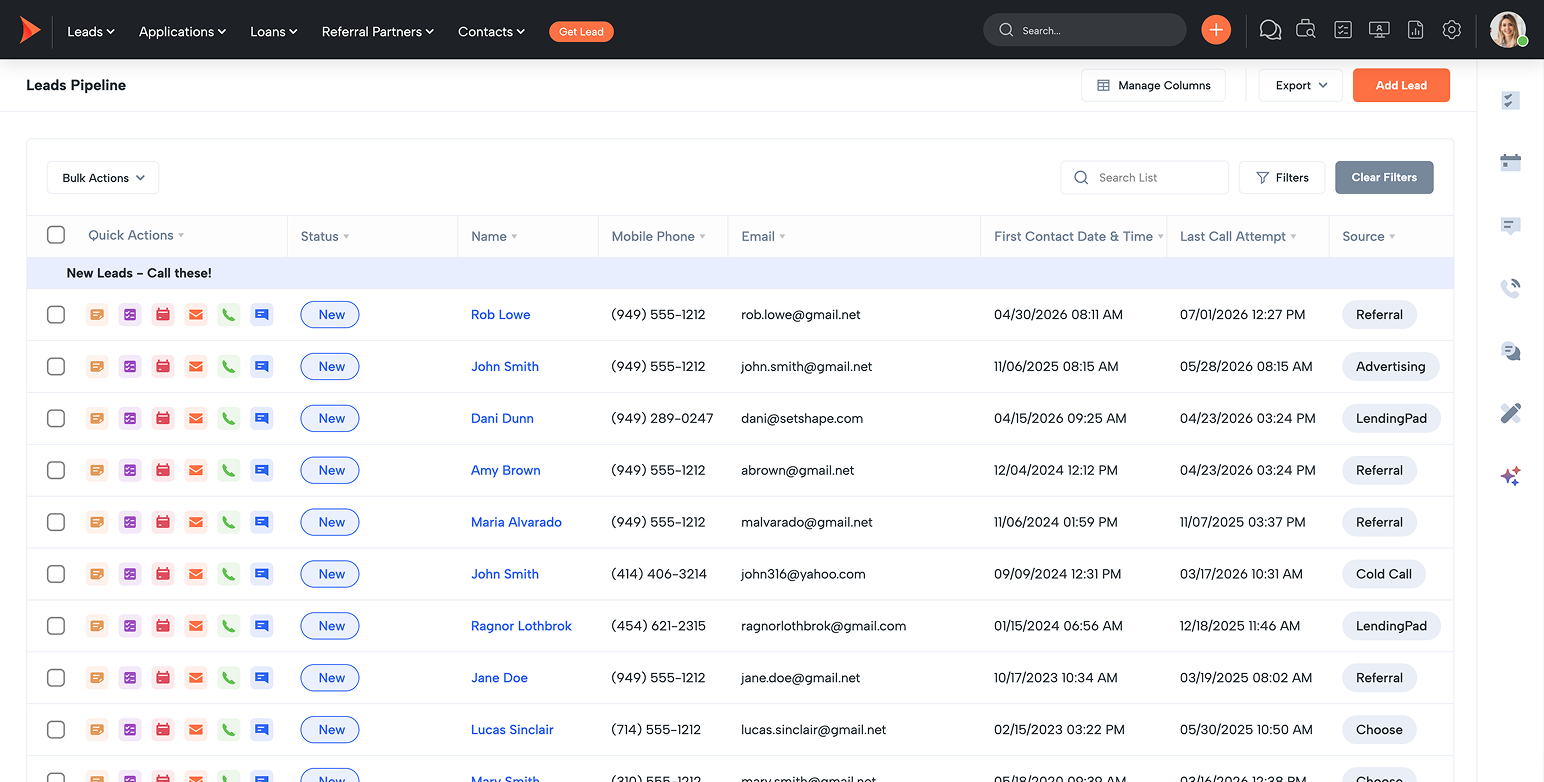

The indicator updates whenever either the user or an administrator changes the Lead Availability setting.
Is the Indicator Updated in Real Time?
Yes.
Changing Lead Availability takes effect immediately throughout Shape Software.
The profile picture indicator may require a browser refresh before the updated color is displayed, but the availability setting itself is applied immediately.
Common Use Cases
Organizations frequently use User Availability Controls when users are:
- At lunch
- In meetings
- On vacation
- Attending training
- Working through a backlog of existing leads
- Experiencing phone issues
- Covering another department
- Temporarily unavailable for new work
Because Lead Availability and Call Availability operate independently, organizations can create workflows that best match their team's responsibilities.
Best Practices
- Turn off Lead Availability before extended meetings or time away from your desk.
- Turn off Call Availability when you are unable to answer inbound calls.
- Leave Lead Availability enabled if you still want to receive new assignments while temporarily unavailable for calls.
- Use administrator-controlled permissions if your organization prefers managers to control user availability.
- Periodically review user availability from the Manage Users page to ensure assignments are being distributed as expected.
Frequently Asked Questions
Why am I not receiving new leads?
Check your User Lead Availability setting.
If Lead Availability is disabled, you will be skipped by automatic assignment methods such as Round Robin, QuickFire, and Trigger Assignments.
Why am I not receiving phone calls?
Verify that User Call Availability is enabled.
If Call Availability is disabled, incoming calls will bypass your user and continue through your configured call routing.
Can I still claim Shark Tank leads when Lead Availability is off?
Yes.
Lead Availability only affects automatic lead assignment.
You can still claim records from Shark Tank if you have access.
Can an administrator change my availability?
Yes.
Users with permission to manage users can update both Lead Availability and Call Availability for other users.
Can I still manually receive records?
Yes.
Manual assignments and Bulk Assignments are not affected by User Lead Availability.
Can Lead Availability and Call Availability be controlled separately?
Yes.
The two settings are completely independent and can be enabled or disabled individually.
Does my availability automatically reset at the end of the day?
No.
Both Lead Availability and Call Availability remain in their current state until they are manually changed by you or an authorized administrator.
Keywords: