
Table of Contents
Support Guide
Custom Tab & Custom Fields in Shape Software
-
Shape Software
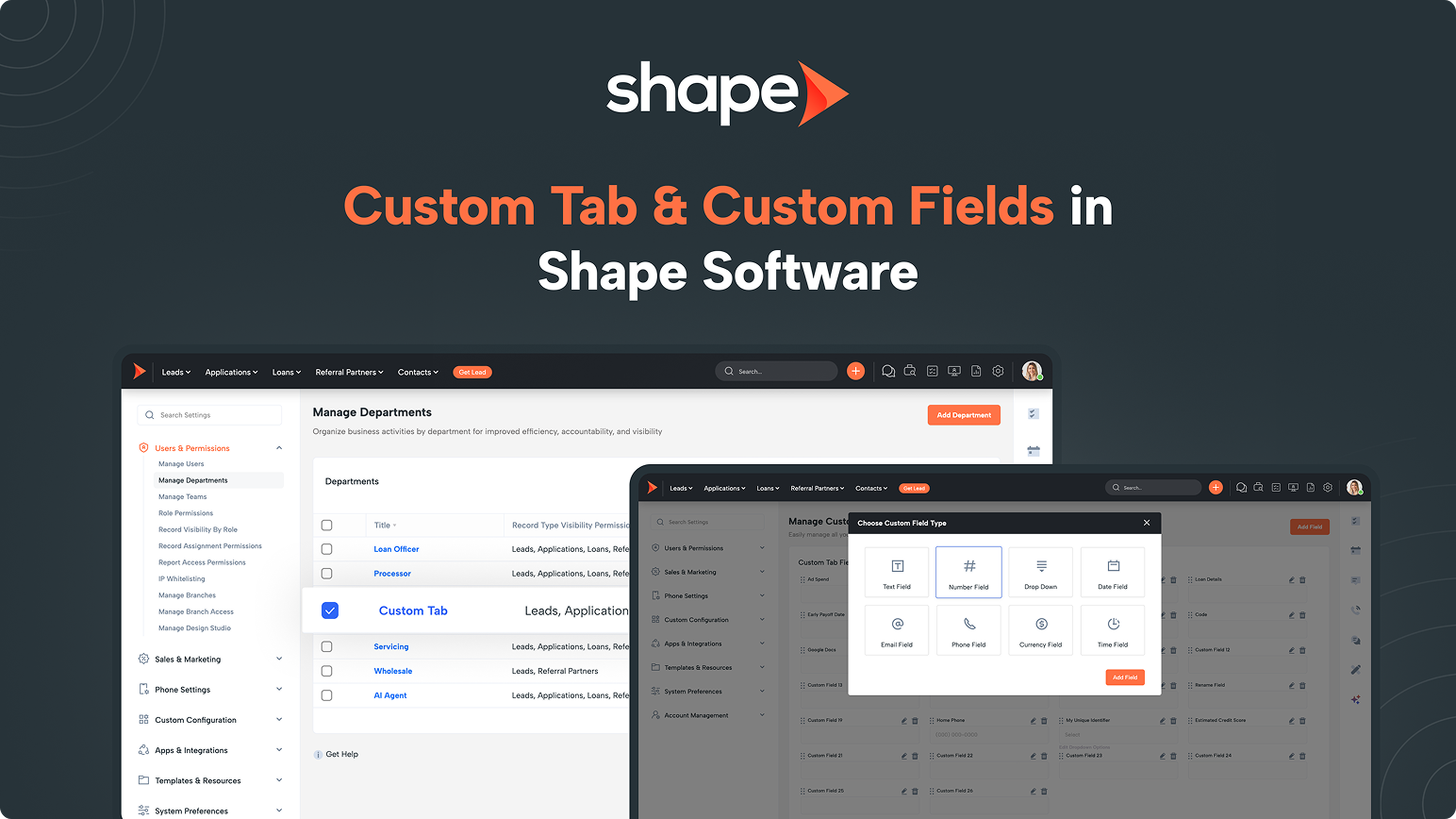
Learn how to create, manage, and organize Custom Fields in Shape Software. Build custom record tabs, capture unique business data, and use Custom Fields in reports, list pages, imports, APIs, and more.
Custom Tab & Custom Fields
Every Shape system comes preconfigured with hundreds of built-in fields designed around industry best practices. In most cases, these standard fields provide everything your organization needs to manage customers, opportunities, and daily workflows.
However, every business is different.
If you need to capture information that's unique to your organization, Shape allows administrators to create their own fields directly within a dedicated Custom Tab.
Whether you're tracking an internal reference number, a preferred vendor, equipment serial numbers, membership levels, territory assignments, compliance checklists, or other information unique to your business, Custom Fields allow you to tailor Shape to your workflow without requiring custom development.
Each Custom Tab supports up to 80 self-managed Custom Fields, giving administrators plenty of flexibility while maintaining an organized record layout.
Once created, Custom Fields become part of your CRM and are immediately available throughout Shape. They can be added to reports, displayed on list pages, populated by lead providers, updated through the API, and used anywhere Custom Fields are supported.
What Can Custom Fields Be Used For?
Once created, your Custom Fields become part of your organization's data model and can be used throughout the platform.
Common uses include:
- Displaying additional information on customer records
- Adding columns to list pages
- Reporting and analytics
- CSV imports
- Lead provider posting
- Open API integrations
- Custom UI
- Filters and automation throughout Shape
Rather than being limited to a single page, Custom Fields become available anywhere Shape supports custom data.
Before You Begin
Most Shape industry templates already include the fields commonly needed for your industry.
Before creating new Custom Fields, we recommend reviewing the existing fields already available in your system to avoid creating duplicate information.
If additional fields are needed, users with permissions can enable the Custom Tab and begin creating their own fields in just a few clicks.
By default, only Shape Administrator user roles can manage the Custom Tab and its Custom Fields.
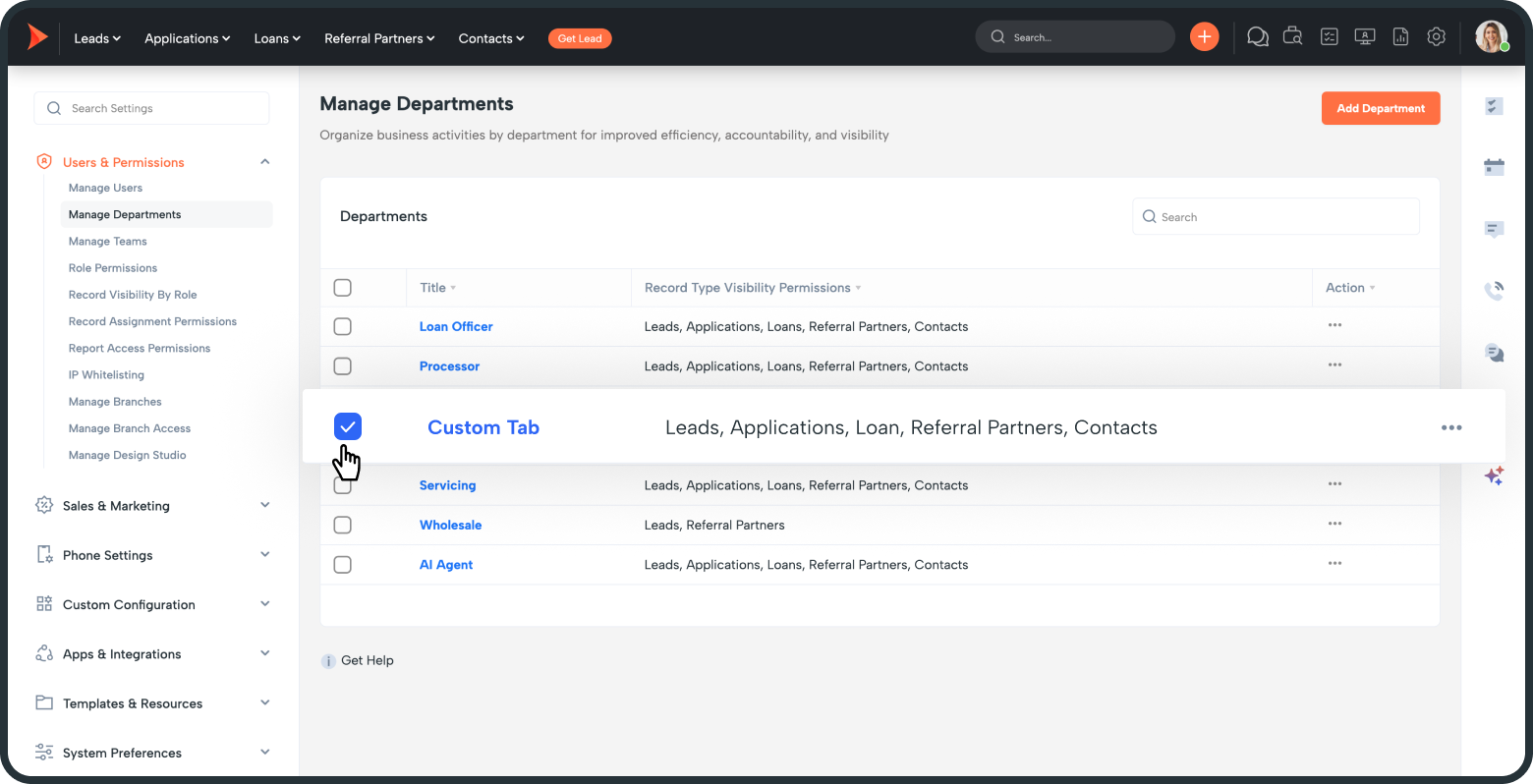
Enabling the Custom Tab
Navigate to:
Settings → Manage Departments
Locate the Custom tab and enable it.
Once enabled, you can rename the tab to better match your organization's workflow.
The tab name is completely customizable.
Managing Custom Fields
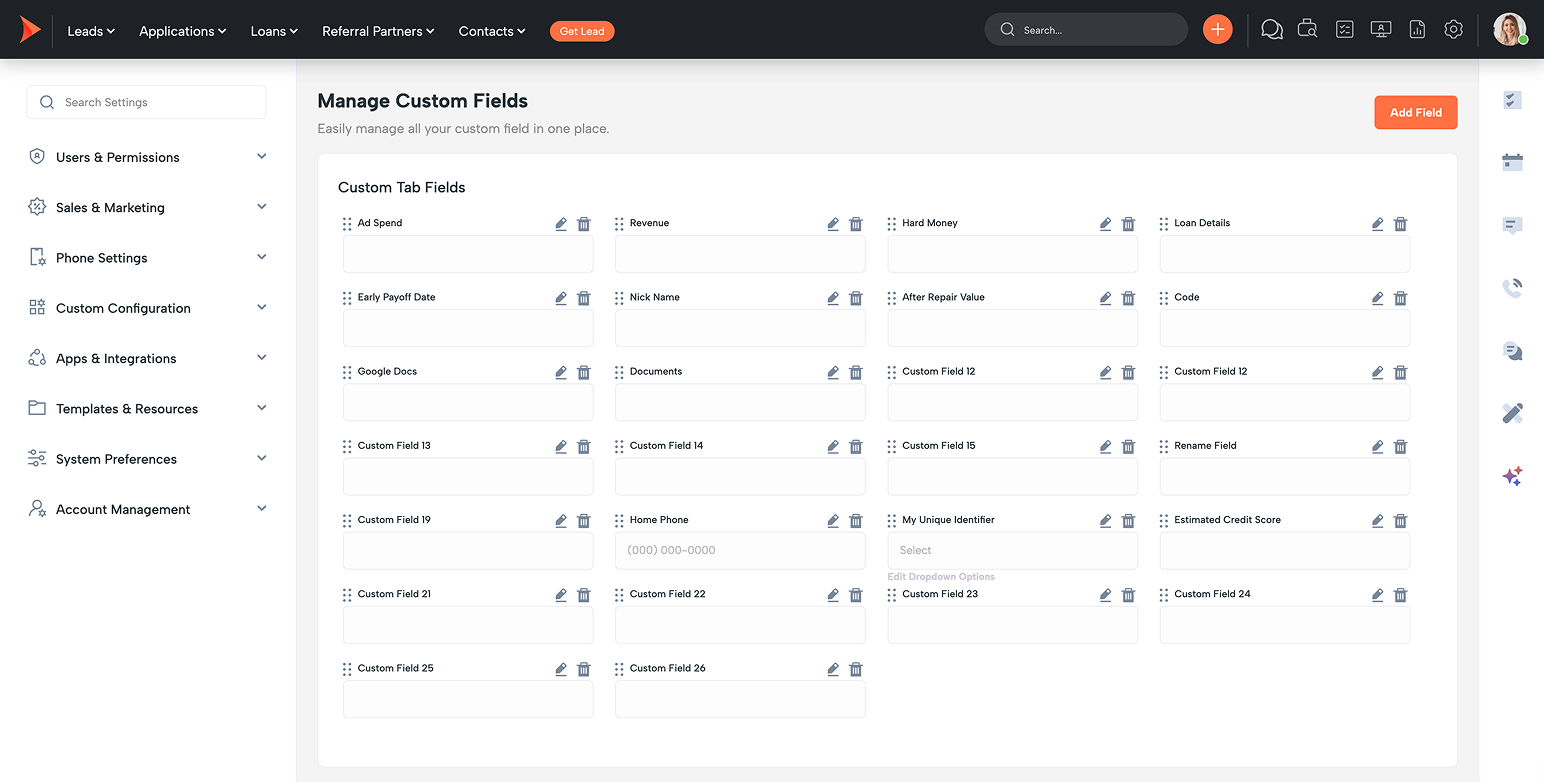
After enabling the Custom Tab, click Manage Custom Fields.
This opens the Custom Field Manager, where administrators can build and maintain all Custom Fields for the tab.
From this page you can:
- Create new fields
- Rename existing fields
- Delete unused fields
- Rearrange fields using drag-and-drop
- Configure dropdown options
Changes are reflected immediately after saving.
- Warning: Before editing an existing Custom Field, consider how it's being used throughout your system. Renaming fields, changing field types, or modifying dropdown options may impact reports, list pages, integrations, imports, lead providers, automations, APIs, or other business processes that rely on that field. We recommend reviewing any dependencies before making changes.
- Important: Deleting a Custom Field permanently removes both the field and its associated data, and recovery may not be possible. Before deleting a field, verify that it is no longer used by your users, reports, integrations, automations, or other business processes.
Creating a Custom Field
Creating a new field only takes a few moments.
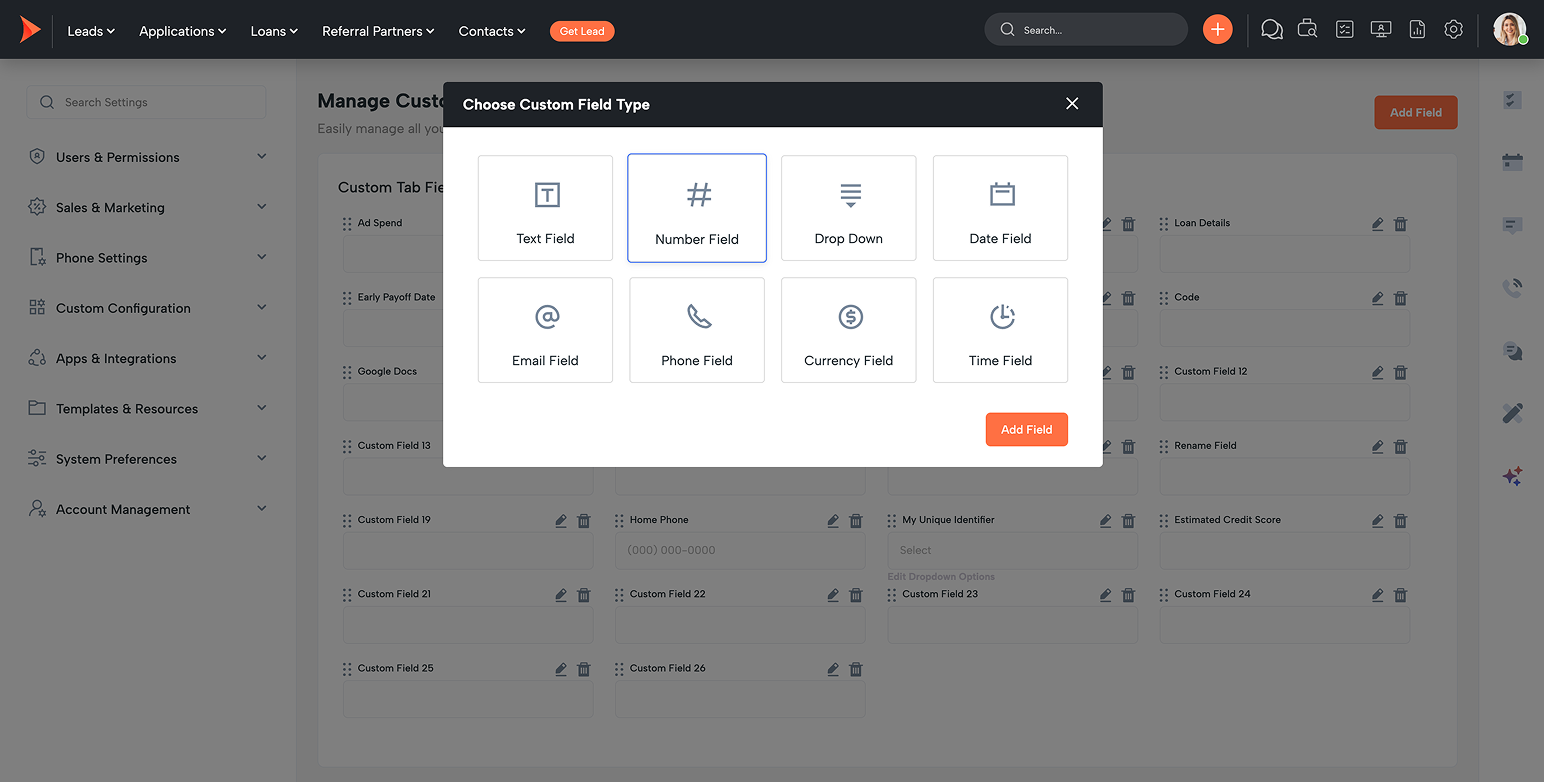
Click Add Field in the upper-right corner.
Next, choose the field type that best matches the information you'd like to collect.
Shape currently supports:
Field Type
Situation
Text Field
General text, names, identifiers, notes
Number Field
Numeric values and quantities
Dropdown
Standardized selections
Date Field
Dates
Email Field
Email addresses
Phone Field
Phone numbers
Currency Field
Dollar amounts
Time Field
Appointment times or durations
After selecting the field type:
1.
Enter the field name.
2.
Configure any additional options (such as dropdown choices).
3.
Save the field.
Your new field immediately becomes available on the Custom Tab.
Organizing Your Custom Fields
As your organization grows, you'll likely add additional fields over time.
Fields can be reordered simply by dragging and dropping them into a new position.
Many organizations organize similar fields together to improve usability.
Grouping related information together creates a cleaner experience and makes records easier to complete.
Best Practices
A little planning goes a long way when designing your Custom Tab.
We recommend:
- Review your existing fields before creating new ones.
- Use descriptive names that users immediately understand.
- Group related fields together.
- Use Dropdown fields whenever possible to improve reporting consistency.
- Design your layout around how users actually work, rather than simply adding fields as requests come in.
Frequently Asked Questions
How many Custom Fields can I create?
Each Custom Tab supports up to 80 self-managed Custom Fields.
Can I rename the Custom Tab?
Yes. The tab can be renamed at any time to better match your organization's workflow.
Can I rearrange my Custom Fields?
Yes. Simply drag and drop fields into the order you'd like them displayed.
Can I rename a Custom Field later?
Yes. Administrators can edit the name of any Custom Field at any time.
Can I delete Custom Fields?
Yes. Custom Fields can be deleted when they are no longer needed.
Note: Deleting a field permanently removes both the field and its associated data.
Can I report on Custom Fields?
Yes. Custom Fields are immediately available throughout Shape's reporting tools.
Can I add Custom Fields to list pages?
Yes. Custom Fields can be displayed as columns on list pages, allowing users to sort, view, and work from custom information without opening each record.
Can lead providers populate Custom Fields?
Yes. Custom Fields can be mapped during imports, lead posting, and supported API integrations, allowing external systems to populate your custom data automatically.
Can I use Custom Fields with the Open API?
Yes. Custom Fields are supported through Shape's Open API, making it easy to read and update custom data from external systems.
Can I use Custom Fields in Custom UI?
Absolutely. Custom Fields work seamlessly with Shape Custom UI, allowing you to build fully customized record layouts and workflows using the fields you've created.
Do I need to create Custom Fields for most implementations?
Usually not. Most Shape industry templates already include the fields needed for common mortgage, insurance, and sales workflows. Custom Fields are designed for tracking information that's unique to your organization or business processes.
Keywords: