What the Conversations Center is
The Conversations Center is where you call, text, email and take notes on every record in Shape, all from one window. It opens in its own browser window from the Conversations button in Shape’s navigation, so you can keep a record open in Shape on one side and work your conversations on the other. Clicking Conversations again brings the existing window to the front rather than opening a second one.
The screen has three main parts:
- Conversation list (left): every thread you can see, with search, views and filters.
- Conversation (center): the record’s details, its full activity history, and a composer for replying by text, email or note.
- Phone (right): a web phone with keypad, caller ID, missed calls and voicemail.
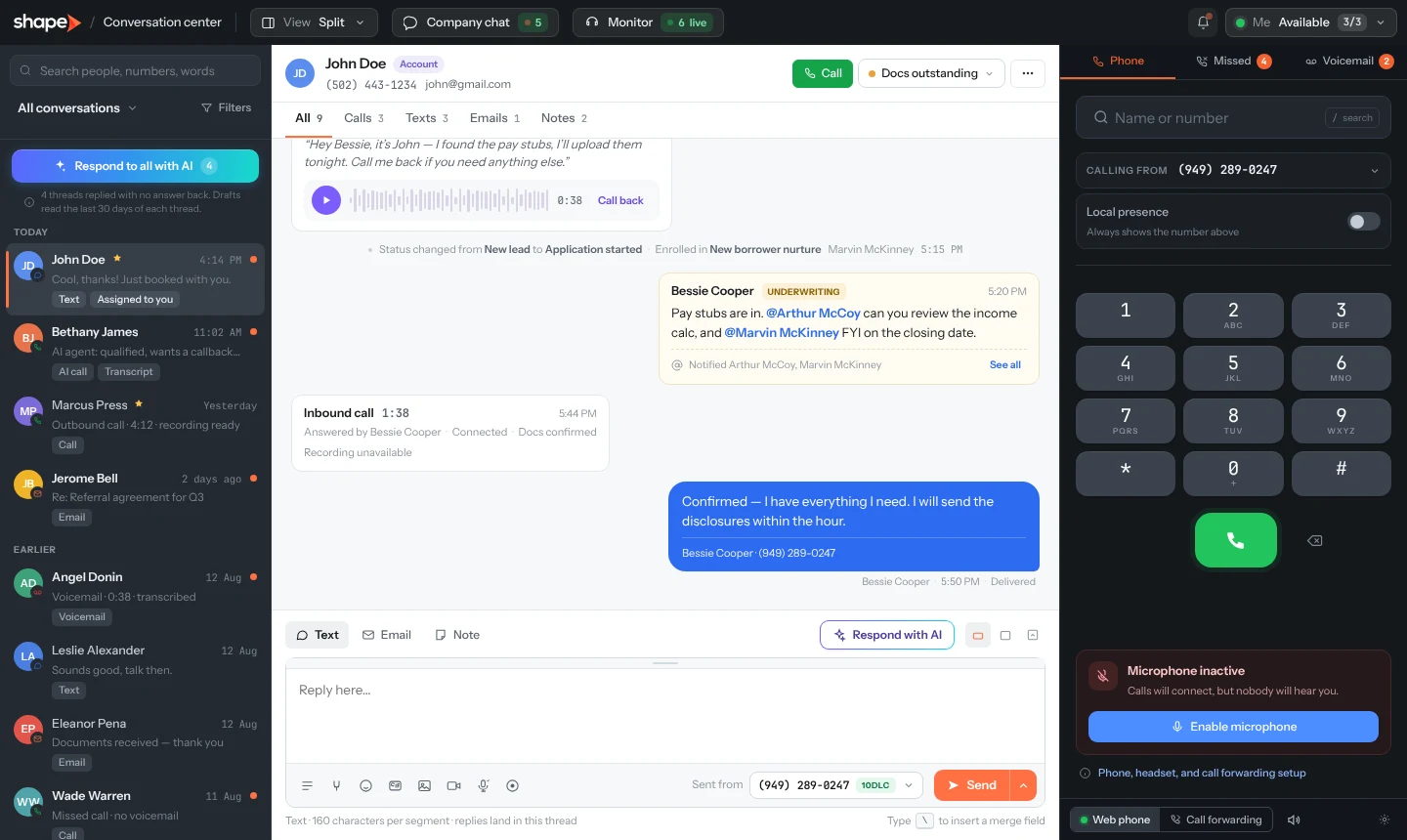
Across the top, the toolbar holds the layout selector, Company Chat, Call Monitoring (for managers), notifications and your availability.
If your browser blocks pop-ups, Shape shows a notice asking you to allow them for Shape so the window can open.
Quick start
- Click Conversations in Shape’s navigation and allow pop-ups if your browser asks.
- Click Enable microphone in the phone panel so callers can hear you.
- Set your status at the top right to Available so calls and leads can reach you.
- Open Without response in the conversation list to see who is waiting on a reply.
- Pick a conversation, review the timeline, then reply by text or email, or click Call.
Conversations Center vs. the Contact Log
Both show a record’s calls, texts, emails, voicemails and notes. The Contact Log lives inside a single record and groups activity into sections, which is handy when you are already working that record. The Conversations Center lets you move between customers and see each one’s history as a single chronological thread, so it is usually faster when you are working through calls, texts and follow-ups across many customers.
Related guides: Using the Webphone · Performance Tips
What’s new
Recent improvements to the Conversations Center, and what each one saves you. Each is covered in full in its section below.
| Improvement | Why it helps |
|---|---|
| One conversation per phone number | When several records share a number, you see one conversation with a +N records tag instead of the same person listed again and again. Your list stays short, and opening it marks every copy as read. |
| Text delivery status | A text the carrier refuses gets a red Not delivered mark with the carrier’s reason, so you know to follow up another way instead of waiting on a reply that will never come. |
| Sound controls | Mute calls, new leads or messages separately from the bell. Silence chat sounds without risking a missed call or lead. |
| Conversation and Record buttons in the dialer | Reach voicemail? Jump straight to the person’s thread to text them, or open their record, without searching and without touching the call. |
| Call forwarding works with calls started in Shape | Calls you place from a record or list view now show in the Conversations Center dialer, so every outcome is logged in one place. |
| Focus dial waits when your phone disconnects | Instead of running through your list without dialing anyone, Focus dial pauses on the record, lets you reconnect, then calls that same person. |
| Bulk remove in Focus dial | Select many records, or everything a filter shows, and take them out of the queue in one step. |
| QuickFire opens the record from any Shape tab | Accept a QuickFire lead from the popup in Shape and their record opens right away, just as it does in the Conversations Center. |
| Searchable saved numbers in transfers | Find a saved number by name or number; the list stays short and the Call and End call buttons stay on screen. |
| Incoming calls while listening | Managers can decline or answer a call that rings during Listen without getting stuck or ending the session by accident. |
| Ctrl+F2 for phone search | Typing a date such as 03/15/2027 no longer opens search halfway through. |
Getting around
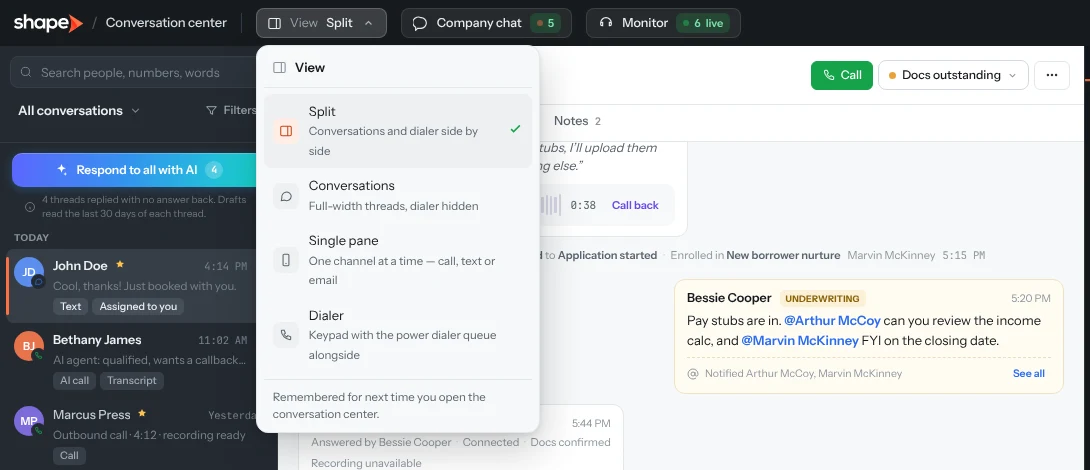
Use the View menu at the top left to pick the layout that fits how you work. Your choice is remembered.
| Layout | What you see | Best for |
|---|---|---|
| Split | Conversations and the phone side by side | Most reps, most of the day |
| Conversations | Full-width threads with the phone hidden | Heavy texting and email work |
| Single pane | One channel at a time: call, text or email | Small screens or a narrow window; opens on Call |
| Dialer | The keypad with the Focus dial queue alongside | Outbound calling sessions |
The rest of the toolbar:
- Company chat opens internal messaging with your team. The badge shows unread messages and mentions.
- Monitor opens live call monitoring, if your role allows it. The badge shows how many calls are live.
- Notifications (the bell) lets you turn on desktop notifications so you hear about calls and messages while the window is in the background. It also holds the sound controls described below.
- Availability (your status, top right) controls which calls and leads reach you. See Availability and routing below.
Sounds
The Conversations Center plays distinct sounds for calls, new leads and messages, so you can tell what arrived without looking. Open the bell to choose which ones you hear. Sounds are split into three groups by how quickly you need to act:
| Group | Covers | Why it is separate |
|---|---|---|
| Calls | Ringtone, call waiting and the dial tone | A ringing call is gone in seconds |
| New leads | The QuickFire alert when a lead is up for grabs | The first rep to accept gets the lead |
| Messages | Texts, Company Chat, voicemail and missed calls | These wait in your list with a badge until you read them |
This lets you quiet chat and text sounds during a busy stretch and still hear every call and new lead. Turn all sounds off mutes everything at once; Turn all sounds on brings all three groups back so none is left silent by mistake.
Muting a group only silences its sound. Calls, QuickFire leads and messages still appear on screen as usual. The speaker button at the bottom of the phone panel always matches your setting, and your choice is saved in that browser.
Keyboard shortcuts
| Key | Where | What it does |
|---|---|---|
| Ctrl+F2 | Phone panel | Jumps to the name or number search |
| \ | Composer | Opens the merge field picker |
| @ | Note | Mentions a teammate |
| Esc | During a call | Cancels a call before it connects |
| Esc | Menus and panels | Closes them |
Related guides: User Availability Controls · Manage User Notification Settings · Live Call Monitoring
The conversation list
The left panel lists your conversations, grouped by Today, Yesterday and Earlier, newest first. Each row shows the contact, the time, a preview of the last message, the channel it came in on, and tags such as Assigned to you. An orange dot means unread; a star means favorite.
One conversation per phone number
When several records share a phone number, such as a borrower with a lead, an application and a loan, the list shows them as a single conversation instead of repeating the same person for each record. That keeps your list short and makes it easy to see who is actually waiting on you.
- Which record opens: the favorited record, or if none is favorited, the one with the most recent activity.
- +N records: a small tag on the row tells you how many other records share the number.
- Read status: opening the conversation marks every record with that number as read.
- Inbound texts are still logged on every record that shares the number, so each record keeps its full history.
- Search still lists each record separately, so you can open any one of them directly.
The count at the bottom of the list still counts records, not conversations, so it can be higher than the number of rows you see.
Search
The search box finds people by name, phone number or email. It searches every record in Shape, not just people you have talked to, and lists each record separately even when several share a number. Records with no conversation yet appear in their own group, and opening one starts a fresh timeline you can call, text or email from.
Views
Open the view selector (it reads All conversations by default) to switch lists:
| View | Shows |
|---|---|
| All conversations | Everything your role can see |
| My conversations | Conversations assigned to you |
| Unread | Conversations not opened yet |
| Without response | They reached out and nobody replied |
| Snoozed | Conversations hidden until their snooze ends |
| Favorites | Conversations you starred |
| Blocked | Numbers you stopped calls and texts from |
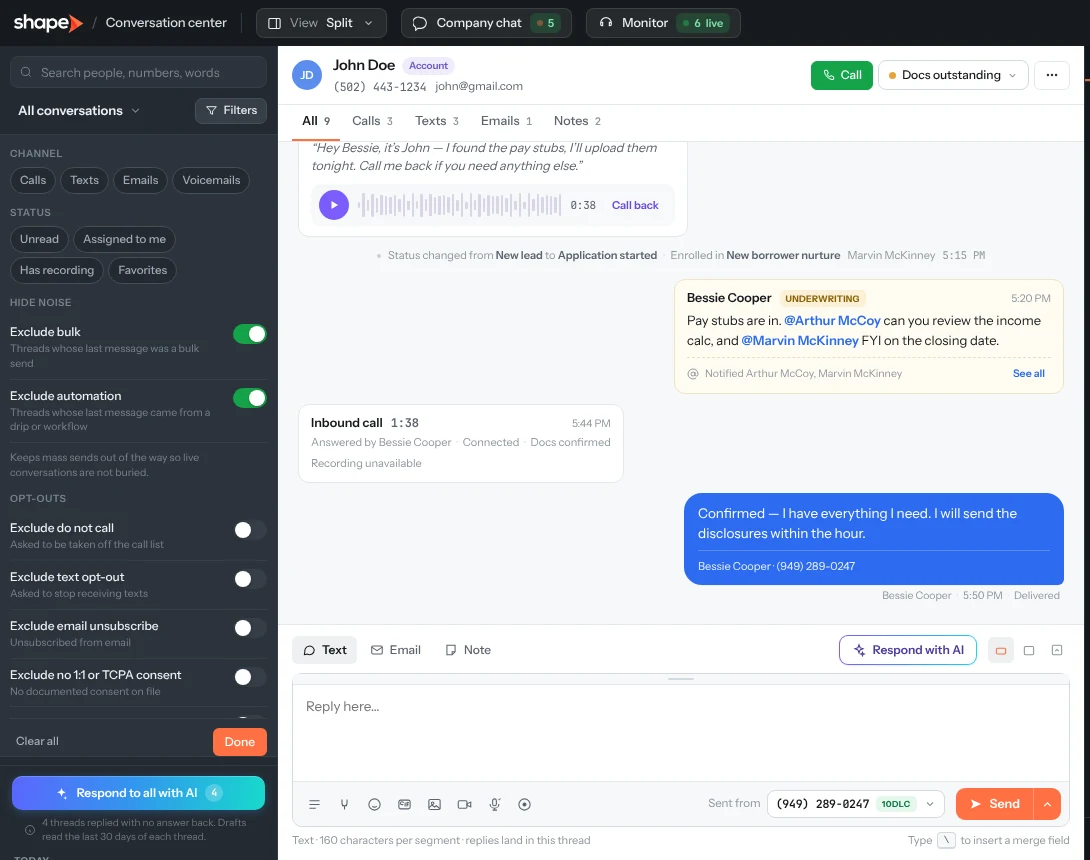
Filters
Filters narrows any view by channel (calls, texts, emails, voicemails) and by status (Unread, Assigned to me, Has recording, Favorites). You can sort by most recent, oldest, unread first or name. Two groups of exclusion switches keep the list focused:
- Noise: Exclude bulk and Exclude automation hide threads whose last message was a mass send or a drip, so live conversations are not buried.
- Consent: hide contacts marked Do Not Call, Text Opt Out, Email Unsubscribe, No 1:1 or TCPA Consent, or Do Not Contact..
The two noise filters are on by default; the consent filters start off. Clear all resets everything.
Setting a conversation aside
Hover a row to mark it read or unread, favorite it, or set it aside. There are two ways to set it aside:
| Option | What it does | Ends when |
|---|---|---|
| Snooze | Hides the thread for 1 hour, 3 hours, until tomorrow 8:00 AM, Monday 8:00 AM, next week, 2 weeks, or 30, 60 or 90 days | The time runs out, or sooner if they message |
| No response needed | Removes it from Without response with no end date | They message again |
Any new message from the contact brings the thread straight back, so a long snooze never buries a customer who is trying to reach you. Snoozed threads still appear under All conversations and Snoozed.
Blocking a number
Block a number from a row or from the record’s More actions menu. Blocked numbers can no longer call or text in, and you can unblock them from the Blocked view.
Related guides: Searching Records in Shape · Blocking Inbound Calls & Texts · Record Visibility Settings by Role · Bulk Texting in Shape
The record header
The top of each conversation shows who you are talking to: name, record type (these depend on your industry template; a mortgage account, for example, uses Lead, Application, Loan, Referral Partner and Contact), phone and email. The green Call button dials them using your current caller ID.
Status, opt-outs and validation
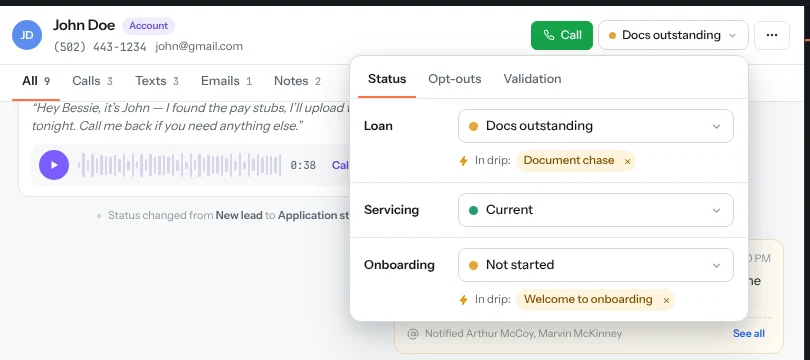
The status button beside Call shows the record’s primary status and opens a panel with three tabs. It works the same way as the status menu on the Lead details page, so a status or flag means the same thing in both places.
- Status: change any of the record’s status fields. Some record types have more than one, such as Loan status, Servicing status and Onboarding status, each set independently. Long lists open with a search box.
- Opt-outs: see and change the record’s contact preferences (listed below). Turning a flag on takes one click and shows when it was set. Turning one off asks you to confirm, because it re-opens contact with someone who said no.
- Validation: see whether the email address is valid and whether the phone is mobile, landline or VoIP, with the carrier and when it was last checked. You can re-run validation here.
| Opt-out | What it blocks |
|---|---|
| Email Unsubscribe | Every outgoing email |
| Text Opt Out | Every outgoing text, manual and automated, SMS and MMS |
| Do Not Call | Outbound calls |
| No 1:1 or TCPA Consent | Automated and bulk texts only; your manual texts and calls still go |
| Mail Opt Out | Direct mail |
| No drip campaigns | Drip enrollment; manual calls, emails and texts still go |
| Do Not Contact | Everything |
Opt-outs take effect immediately. Once one is set, the matching Send or Call action is blocked for that record.
Drips started by a status
Some status values start a drip campaign. In the status list, those values show a lightning hint such as Starts a drip or Starts 2 drips; hover it to see which drips and their timing. After you pick the status, the panel lists what is running, for example In drip: Document chase. Remove a drip there to stop it without changing the status. If the record has No drip campaigns set, the hint reads Drips off instead.
More actions
The ⋯ menu holds actions for the conversation:
- Open record opens the full record in Shape.
- Favorite stars the conversation.
- Snooze conversation uses the same durations as the list; when snoozed it shows Snoozed until… and a Remove snooze option.
- Block this number stops calls and texts from the number.
- Delete record asks you to confirm first. Deleting removes the record with its conversation history, calls, voicemails and notes. Authorized users can restore a deleted record from Reports › Deleted Records within 7 days.
The tabs below the header (All, Calls, Texts, Emails, Notes) filter the timeline and show a count for each.
Related guides: Manage Statuses · Communication Opt-Outs & Consent Management · SMS Opt-Out & Email Unsubscribe · Email Validation · Phone Number Validation · Drip Campaigns in Shape
The activity timeline
The timeline is the record’s complete history across every channel, oldest at the top and newest at the bottom. It opens scrolled to the most recent activity. Messages from the contact sit on the left; your messages, your team’s notes and AI activity sit on the right; system events, such as a status change or a drip enrollment, appear as a small centered line.
| Item | What it shows |
|---|---|
| Text | The message, who sent it, the number it was sent from, the template used if any, and delivery status. Replies show which of your numbers they responded to. Automated texts are labeled with the drip that sent them. |
| The subject and body, plus whether and when it was opened. Long emails collapse behind Show full email, and the signature stays folded behind Show email signature. | |
| Call | Direction, duration, who handled it, the outcome, and a recording player with a short transcript preview. View full transcript opens the rest. |
| Voicemail | Length, a player and the transcription, with a Call back button. |
| AI call | Calls handled by Shape AI, with a bullet summary of what was learned, the recording and transcript. |
| Note | Internal notes with their type and any teammates who were @mentioned. Customers never see notes. |
A few details worth knowing:
- Missed calls show no duration or player.
- Calls without a recording show Recording unavailable instead of a player, for example when your account records on demand and the call was not recorded.
- Colors help you scan: green for connected calls, purple for voicemail and AI, gray for missed calls.
Text delivery status
Every text you send gets its final status back from the carrier: texts you send by hand, drip, trigger and scheduled texts, and texts sent through the API. That means Sent in Shape is no longer the end of the story; you find out whether the message actually reached the person.
- Not delivered: when a carrier refuses a text, it shows a red Not delivered mark with the carrier’s error code. Click it to see the reason.
- Try again puts the text back in the composer, so you can check it and press Send when you’re ready.
This matters most when a lead goes quiet. If their last text was never delivered, you know to call or email instead of waiting on a reply that will never come.
The Text Message Logs report has a matching Delivery column, on screen and in the CSV export: Delivered, Sent, or Not delivered with the carrier’s code and reason. Use it to spot patterns, such as one sending number being filtered by carriers more than the others. Texts sent before delivery tracking was added show no status.
Related guides: ShapeAI Call Transcription & Analytics · Manage Call Outcomes · Notes in Shape Software
Replying: text, email and notes
The composer at the bottom of the conversation has three tabs: Text, Email and Note. It opens on Text each time you open a conversation, unless you have a draft in progress. Drag the handle above it, or use the size buttons beside Respond with AI, to make it taller.
Text
- Sent from picks the number your text goes out on. The list is searchable by number or label, so you can find a campaign or location number quickly. Each number shows whether it is 10DLC-registered; a warning appears if you pick one that is not.
- Local presence sends from a registered number matching the contact’s area code.
- Texts are counted in 160-character segments, and replies land in the same thread.
- From picks the identity you send as, searchable by name or email. Your signature is added automatically when you send, so it is not in the editing area.
- Add Cc and Bcc from the subject row. There is no To field; the email goes to the contact you are viewing.
- The formatting bar offers font, size, alignment, bold, italic, underline, lists and clear formatting. Fonts are limited to ones that display reliably in every mail app.
- To add a link, highlight text, click the link button and enter the address. Click inside an existing link to edit or remove it.
- Drop a file on the body to embed an image, or on the attachment strip to attach it.
Note
Notes are internal and never reach the customer. Pick a note type (General, Call note, Follow-up, Underwriting, Document request, Objection or Internal escalation). Type @ to mention a teammate; they will see it in their Company Chat mentions. The button reads Save note instead of Send.
Tools in the composer toolbar
- Templates: saved text and email templates for the current channel, organized in folders, with search and your recently used ones at the top.
- Merge fields: type \ (backslash) or use the toolbar button to insert fields such as first name. Each field shows a live example from the current record.
- Emoji, GIFs, images and files.
- Video message: record a short video to send.
- Dictate: speak and your words appear as text you can edit before sending.
- Voice note: record audio and send it to the customer as a message.
Scheduling a message
Use the arrow beside Send to pick a send time for a text or email. The button changes to Schedule, and you can cancel the scheduled send before it goes out.
Related guides: Texting in Shape · MMS in Shape · Merge Tokens · 10DLC Phone Number Registration · Using Local Presence · SMS Templates · Email Templates · SMS Spam Filtering & Deliverability · Manage Notes and Types · Voice Dictation
AI tools
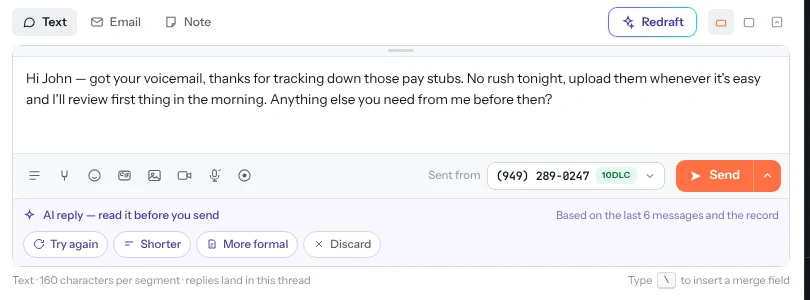
Shape AI drafts replies and answers questions about calls, but nothing is sent until you review it and click Send.
| Tool | Where | What it does |
|---|---|---|
| Respond with AI | Above the composer | Drafts a reply to the open conversation in the current channel, based on the thread. Then choose Try again, Shorter, More formal or Discard, or edit the draft yourself. |
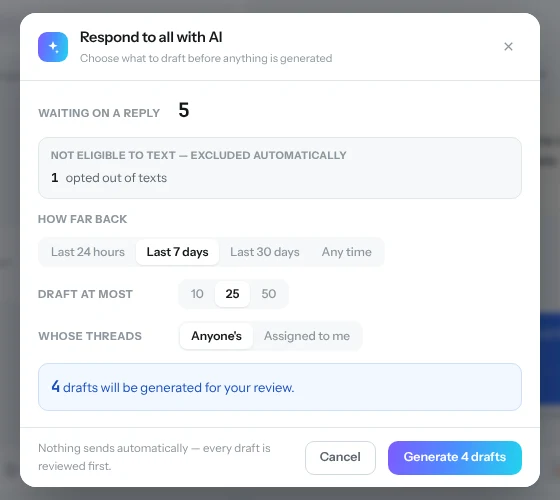
| Respond to all with AI | Top of the conversation list | Drafts replies for every thread where the contact replied and nobody answered back. The badge shows how many. First choose how far back to look (last 24 hours up to any time), how many to draft (10, 25 or 50), and whether to include anyone’s threads or only yours. Contacts who opted out of texts are skipped automatically. You then step through the drafts to edit, send or skip each one. |
| Analyze | On any recorded call or AI call | Ask a question about the call, such as what the customer objected to or what was promised, and get an answer drawn from the recording. |
If AI features have not been set up for your account, clicking any of these opens a short setup prompt instead.
Related guides: AI Insights: Call Analysis · AI Calling & Texting in Shape
The phone
The phone panel is a full web phone. It has three tabs: Phone, Missed and Voicemail, each with a badge for anything new.
Before your first call
If you see Microphone inactive, click Enable microphone and allow access in your browser. Calls still connect without it, but the other person will not hear you. The link Phone, headset, and call forwarding setup walks through choosing a headset and other devices.
At the bottom of the panel, choose how calls reach you:
- Web phone rings in the Conversations Center through your computer.
- Call forwarding sends your calls to another phone instead. Calls you place from Shape still show in the dialer (see Calls you start elsewhere in Shape, below).
Placing a call
- Type a name or number in the search box at the top of the Phone tab (press Ctrl+F2 to jump to it), or use the keypad.
- Check Calling from, the caller ID the contact will see. The list is searchable.
- Turn on Local presence to call from a number matching the contact’s area code; leave it off to always use the number shown.
- Click the green call button. You can also call from the record header or a Call back link in the timeline.
The call moves through Connecting, Ringing and Connected. Press Esc to cancel before it connects.
Calls you start elsewhere in Shape
When you call someone from a record or a list view in Shape, the call shows in the Conversations Center dialer too, including when you use Call forwarding. You see it ring, connect and end, and the wrap-up screen lets you log the outcome and notes there, exactly as if you had dialed from the Conversations Center. Every call gets logged the same way, wherever you start it.
This works when the Conversations Center is open in the same browser, you’re signed in as the same user, and the phone isn’t already on another call.
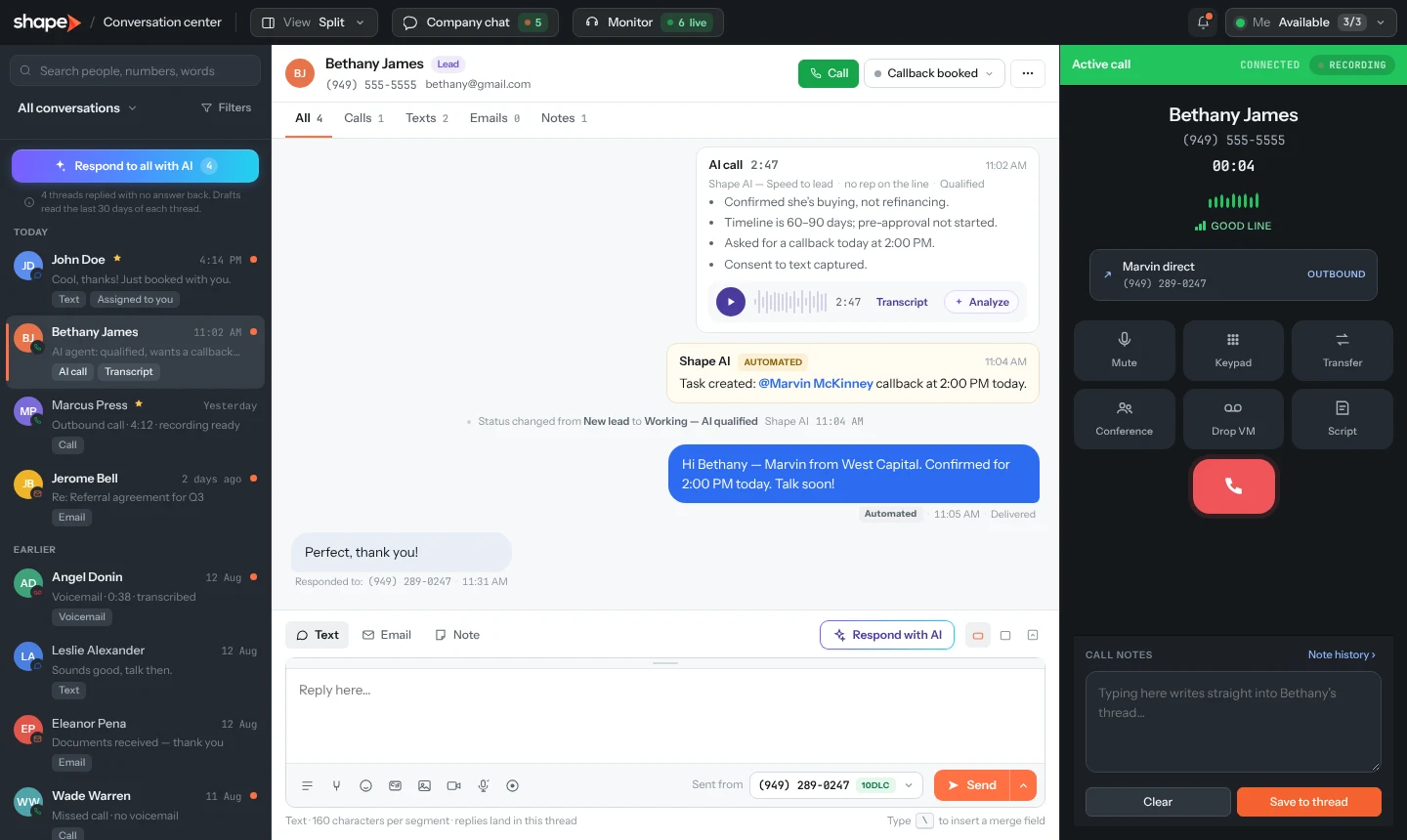
During a call
The panel shows the caller, a timer, the line the call is on and its direction. If the connection gets choppy, a banner tells you; if audio drops, Shape says it is reconnecting and that the caller is still on the line.
| Control | What it does |
|---|---|
| Mute | Mutes your microphone |
| Keypad | Sends tones, for example to navigate a phone menu |
| Transfer | Hands the call to someone else (see below) |
| Conference | Adds a third person while you stay on the call |
| Drop VM | Leaves a pre-recorded voicemail so you can move on |
| Script | Opens your call scripts beside the call |
| End call | Hangs up |
Below the call controls, Call notes writes straight into the contact’s thread: type or dictate as you talk, then click Save to thread. You can keep working in the conversation during the call.
Jump to the conversation or record
The dialer shows Conversation and Record buttons for the person you’re calling, while it rings, during the call and on the wrap-up screen. They work wherever you started the call: Focus dial, a record, or anywhere else in Shape.
- Conversation opens that person’s thread in the Conversations Center, switching to Split view if needed, with the composer set to Text. Reached voicemail? Send a follow-up text in seconds, without searching for them. If you have an unsent reply in another thread, you’re asked before it’s discarded.
- Record opens their record in a new tab, so you can review or update it while you talk.
Neither button affects the call. If the number matches no record, or more than one, both buttons are turned off so you never land on the wrong person.
Transferring and conferencing
Pick how to transfer, then who to send the call to.
| Mode | How it works |
|---|---|
| Warm | The caller waits on hold while you talk to the teammate privately. You then connect everyone, introduce them and drop off. |
| Cold | The caller goes straight through and you leave the call as soon as it connects. |
| No hold | You keep talking to the caller while it rings the teammate silently. When they answer, all three of you are connected. |
Choose the destination from Users, Groups, Saved numbers or Manual entry. Each tab works the same way: a search box, a short list of results with a count, and a list that scrolls on its own. Find a saved number by typing part of its name or number; up to six show at a time. The Call and End call buttons stay on screen however long your list of saved numbers is, so you never have to scroll to finish a transfer. Conference uses the same picker.
Call waiting
If a second call arrives while you are on one, you hear a quiet repeating tone and see the incoming caller. Choose Hold current call and accept, End current call and accept, or Pass this call to let it route elsewhere.
Missed calls and voicemail
The Missed and Voicemail tabs group items into Today and Earlier. Use the Mine / All switch to see only calls to your lines or, if your role allows, everyone’s. Mark all read clears the badge for the scope you are viewing. Voicemails include a player and transcription.
Related guides: Using the Webphone · Call Forwarding Phone Preference · Local Presence Phone Features · Dial Pad, Hold & Mute · How to Transfer Calls · Conference Calling · Call Scripts · Outbound Voicemail Drop · Call Waiting · Inbound Voicemail Greetings
Focus dial and QuickFire Connect
Focus dial (power dialer)
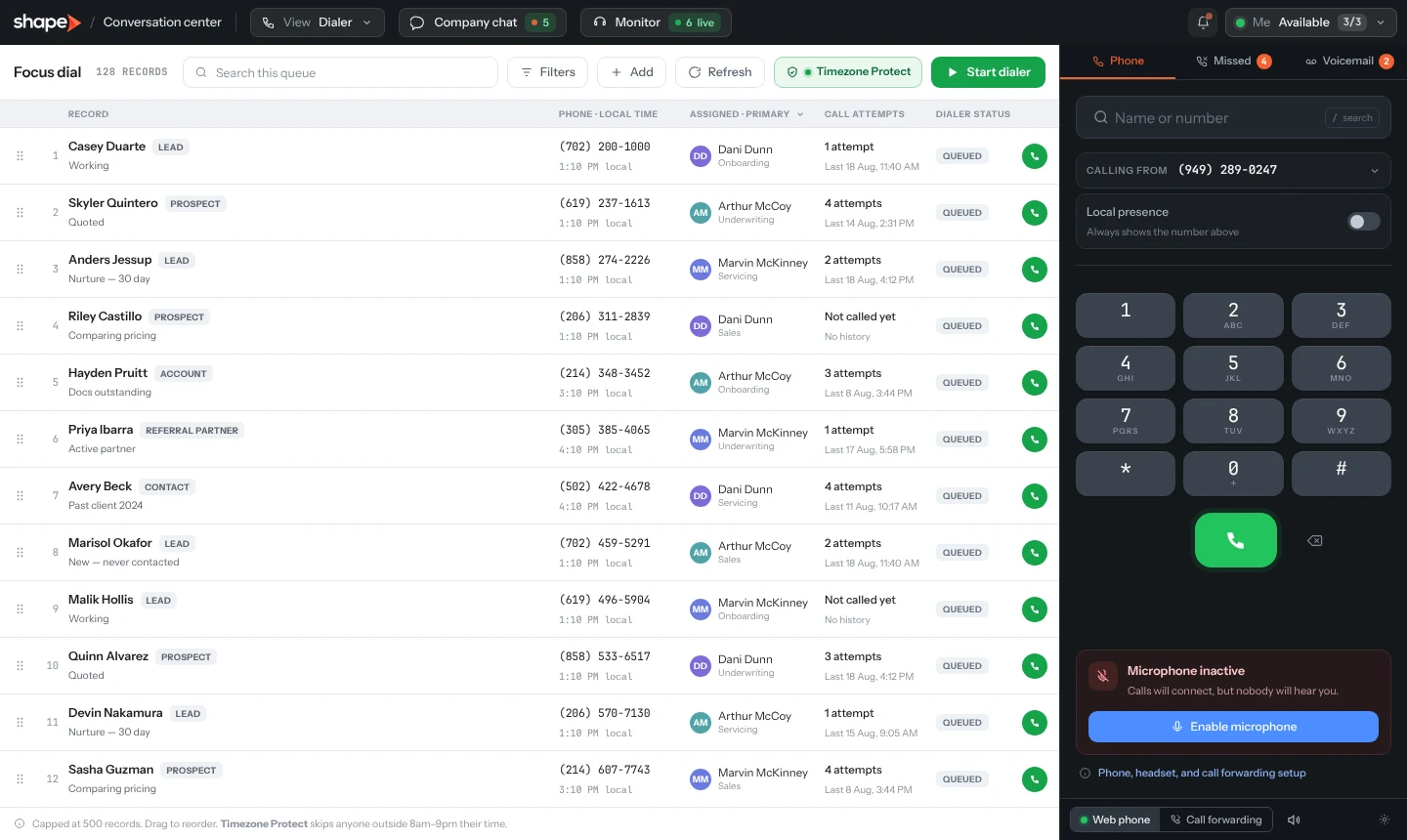
Switch the View menu to Dialer to open Focus dial: a calling queue beside the keypad. Each row shows the record and its status, the phone number with the contact’s local time, the assigned rep, past call attempts, and where the record stands in the queue.
- Build the queue with Filters and Add, or search within it. A queue holds up to 500 records.
- Drag rows to change the order.
- Click Start dialer. Shape calls each record in turn, and you can call any single row with its call button.
Time Zone Protect (shown beside Start dialer) skips anyone outside their calling window. Shape works out each contact’s local time from their address first and their phone’s area code only as a last resort, then applies the calling hours configured for their U.S. state or Canadian province. The default is 8 AM to 9 PM in the contact’s local time, but several states have narrower hours, and some are closed on Sundays or holidays. If nobody in the queue can be called right now, the dialer tells you rather than appearing stuck.
Removing records from the queue
Clear out a batch of records in one step instead of removing them one at a time.
- Tick the checkbox on each row you want to remove, or use the checkbox in the column header to select every record currently shown. Select all respects your filters and search, so you can filter to exactly the records you want gone, then select them all.
- A bar above the list shows how many are selected. Your selection stays put when you change filters, so you can build it up across several views.
- Click Remove from queue and confirm.
Removed records stay in Shape; they only leave this queue. The record being dialed can’t be removed, so a live call is never disturbed. To remove a single record, use its Remove action, which includes Undo.
If your phone disconnects
If your web phone stops connecting, for example after the window has sat idle, Focus dial pauses on the current record instead of moving on, and tells you your phone isn’t connected. Reload the page to reconnect, then press Resume to call that same record. Nobody in your list gets skipped without a real call attempt.
No answer, busy, voicemail and bad numbers still move on to the next record as usual.
QuickFire Connect
When a new lead comes in, QuickFire Connect offers it to available reps at the same time and the first to accept gets it. A card appears over the screen with a 30-second countdown and the lead’s name, phone, email and source (for example, Facebook).
- Accept & Call Now claims the lead and dials them immediately.
- Ignore passes, leaving it for another rep.
With Open record when answering inbound calls turned on in your notification settings, accepting a QuickFire lead opens their record straight away, whether you accept in the Conversations Center or from the QuickFire popup in another Shape tab. You’re looking at the lead’s details by the time they pick up.
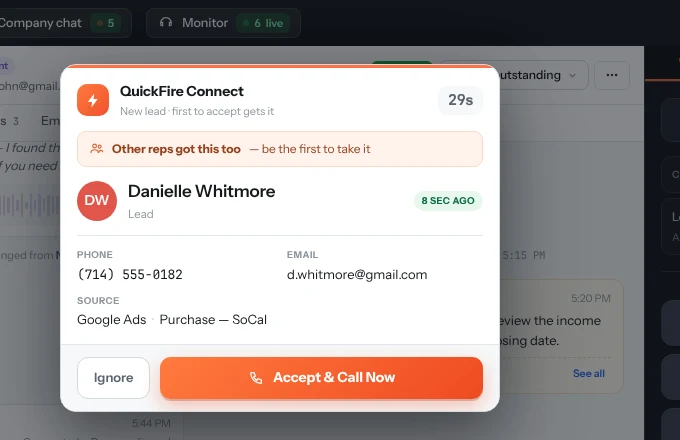
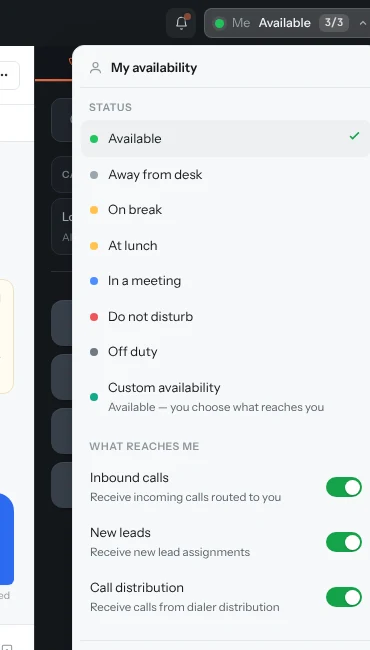
Whether new leads reach you is controlled by the New leads switch in your availability.
Related guides: How Shape’s Time Zone Protect Works · Manage QuickFire Connect · Inbound Call Routing: Call Flows, QuickFire and Call Limits · Using a Call Queue
Availability and routing
Your status at the top right tells Shape what should reach you. Click it to change it.
| Status | What happens |
|---|---|
| Available | You take inbound calls, new leads and dialer distribution |
| Away from desk | Calls route to the next available rep; leads still assigned |
| On break | Inbound calls paused; leads still assigned |
| At lunch | Inbound calls paused; leads still assigned |
| In a meeting | Inbound calls paused; leads still assigned |
| Do not disturb | No inbound calls and no distribution |
| Off duty | Signed off from all routing |
| Custom availability | Available, with you choosing what reaches you |
Under What reaches me, three switches fine-tune it: Inbound calls (calls routed to you), New leads (new lead assignments) and Call distribution (calls from dialer distribution). The count beside your status, such as 3/3, shows how many are on. Picking a status sets the switches for you; changing a switch yourself moves you to Custom availability.
Related guides: User Availability Controls · Inbound Call Routing · Distribution Rules in Shape
Company Chat and mentions
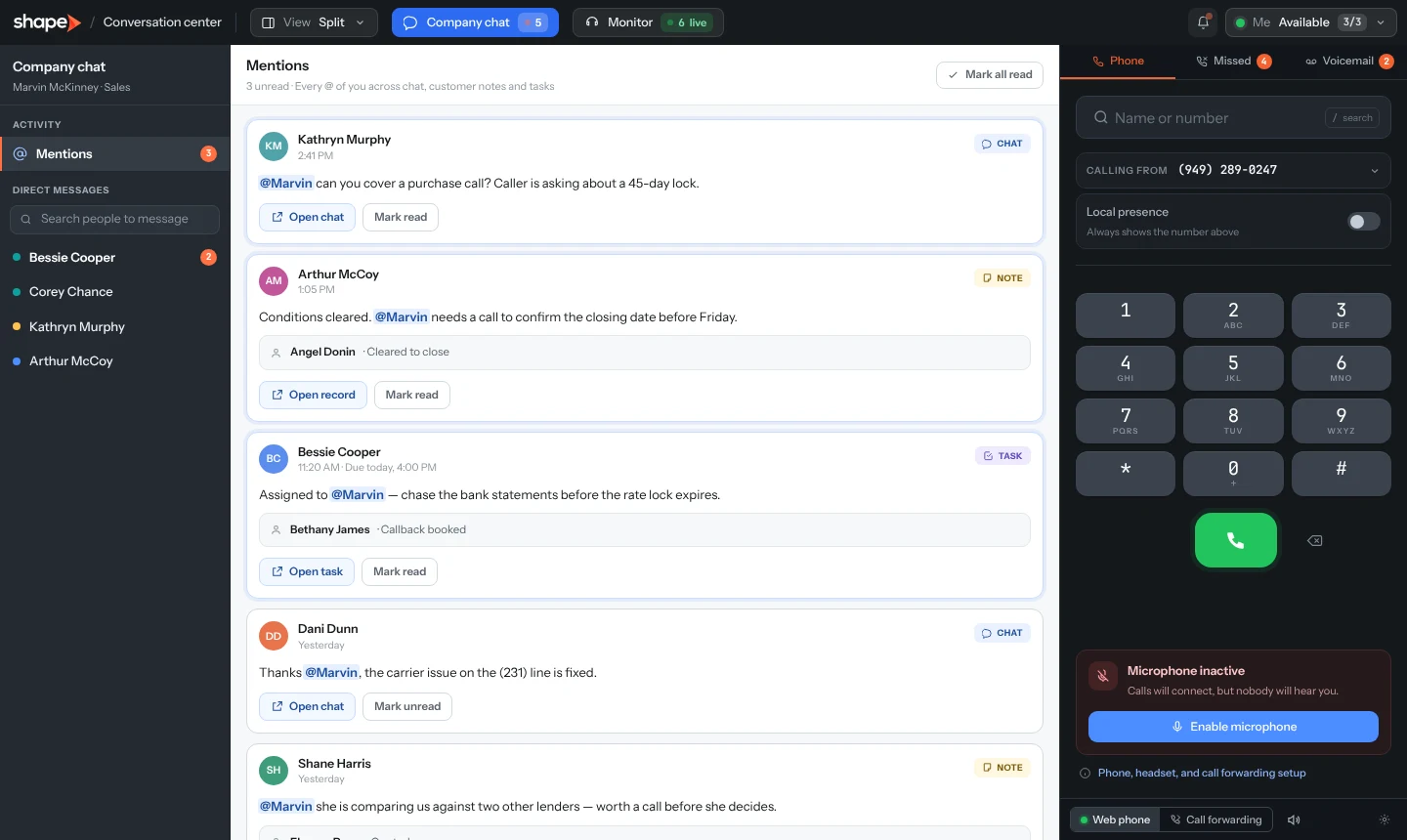
Company chat in the toolbar opens internal messaging with your team, without leaving the Conversations Center.
- Mentions collects every time someone @mentions you, whether in a chat, a customer note or a task. Each card shows where it came from and the related record, with buttons to Open chat, Open record or Open task, and to mark it read. Mark all read clears them at once.
- Direct messages lists your conversations with teammates. Search the directory to start a new one.
When a message arrives while you are elsewhere in the window, a notification appears at the top right with the sender and a preview; click it to jump to the thread. Several messages from one person are combined into one notification, and notifications clear on their own after a few seconds.
Related guides: Manage User Notification Settings · Task Management in Shape
Call monitoring (managers)
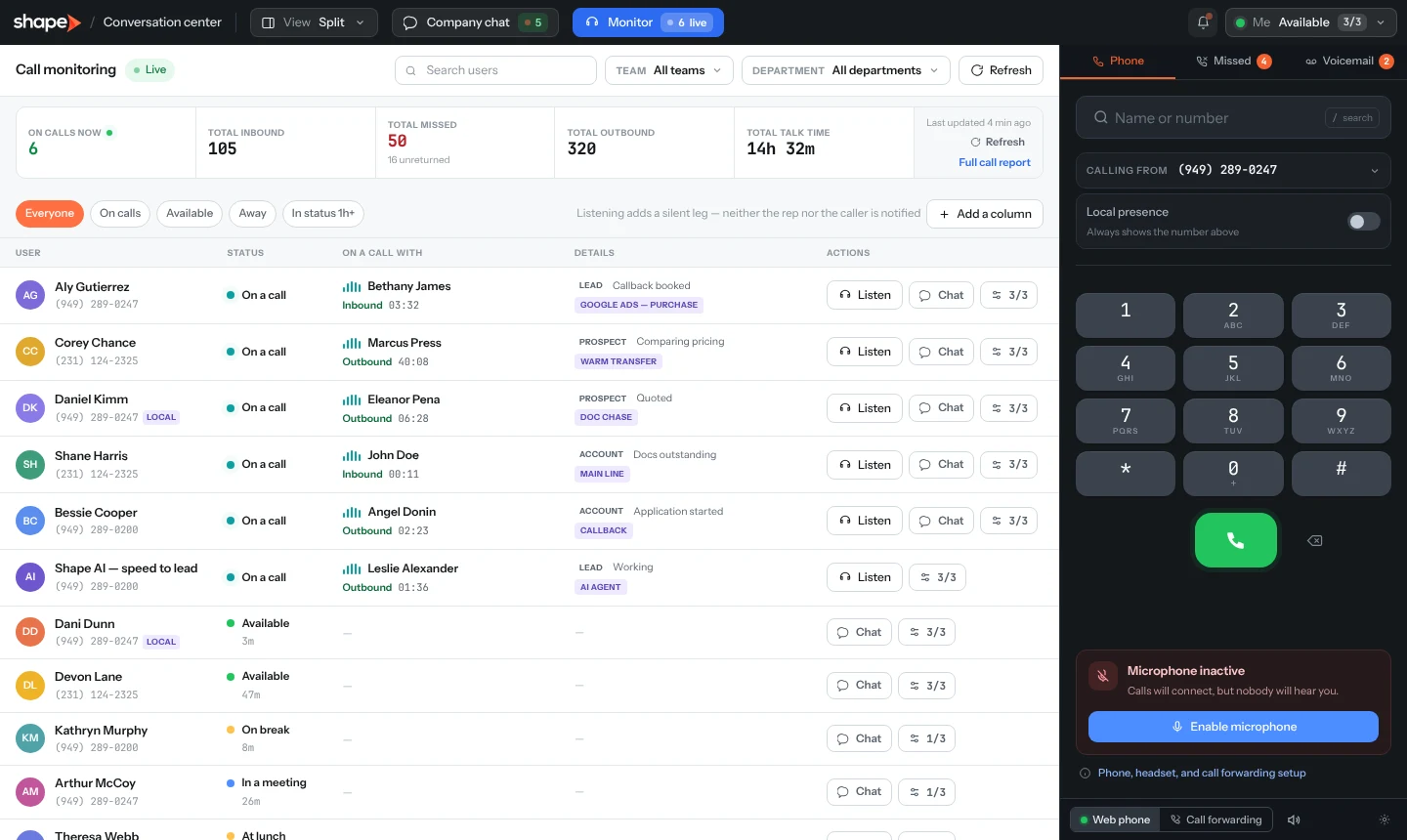
Monitor in the toolbar shows your team’s calling activity live. It is available to roles with monitoring permission.
- Today’s numbers across the top: calls happening now (live), plus total inbound, total missed with how many are unreturned, total outbound and total talk time. These totals show when they were last updated; click Refresh for the latest, or Full call report for more.
- The roster lists each rep with their status, who they are on a call with, call direction and duration, and the record’s type and status. Filter by Team or Department, search by name, or use the quick filters: Everyone, On calls, Available, Away, and In status 1h+.
- Listen joins a live call silently. Neither the rep nor the caller is notified. While listening, you can give the rep feedback through Company Chat.
- Chat opens a direct message with that rep.
- Add a column puts up to two record fields on the board, read from the record on each rep’s live call. Start typing to search for a field.
If a call rings while you’re listening, it shows as a normal incoming call with its countdown, and you stay in control of both:
- Decline sends the call on to its next destination without touching your Listen session.
- Answer stops listening and takes the call.
- If the caller hangs up first, the notice clears by itself.
You can keep coaching without missing calls, and never have to end a session just to clear a notification.
Listening is the only monitoring mode; whisper and barge are not available.
Related guides: Live Call Monitoring · Manager Reporting & User Activity Tracking · Inbound Call Reporting · Manage Role Permissions
Built-in safeguards
The Conversations Center helps you stay compliant without extra steps:
- Opt-outs are enforced the moment they are set: a record marked Do Not Call can’t be dialed, and a Text Opt Out blocks texts.
- Time Zone Protect applies each contact’s local calling hours. The dialer skips anyone outside their window, and you see a warning before texting someone outside it. Calls get the same warning when your administrator has turned on Time Zone Protect for calls. You can confirm and proceed when a message truly needs to go out.
- 10DLC status is shown on every sending number, with a warning before you text from an unregistered one.
- Consent filters let you hide opted-out contacts from your conversation list.
- Deleting a record always asks for confirmation and spells out what will be removed.
Related guides: How Shape’s Time Zone Protect Works · Communication Opt-Outs & Consent Management · TCPA & First-Party Consent · 10DLC Phone Number Registration · Marketing Compliance Features
Best practices
- ✓Check Without response regularly. It is the quickest way to find customers still waiting on a reply.
- ✓Review the timeline before you respond. A customer may have called, texted and emailed, so reading the full history prevents duplicate or confusing replies.
- ✓Update statuses as you work. When a call or message changes the next step, change the status right from the header.
- ✓Snooze instead of ignoring. Snoozed threads come back on their own, and sooner if the customer writes in.
- ✓Use notes and @mentions for internal coordination. Customers never see them.
- ✓Review AI drafts before sending. Respond with AI saves time, but you are still the one sending.
- ✓Check delivery on quiet leads. If a lead hasn’t replied, look for a red Not delivered mark on your last text before you follow up the same way.
- ✓Mute by group, not all at once. Turn off Messages sounds when you need focus, and leave Calls and New leads on so you never miss either.
Frequently asked questions
Why didn’t the Conversations Center open?+
Your browser probably blocked the pop-up. Allow pop-ups for Shape, then click Conversations again.
The customer says they can’t hear me.+
Check the phone panel for Microphone inactive and click Enable microphone. Also check that the right headset is selected in the phone setup.
Why isn’t a conversation showing in my list?+
Check the view (it may be on My conversations or Unread), clear the search, and open Filters to see whether an exclusion such as Exclude automation is hiding it. It may also be snoozed; look under Snoozed.
Will snoozing a conversation make me miss a reply?+
No. Any new message from the contact brings the thread straight back.
Why won’t the dialer start?+
Time Zone Protect skips contacts who are outside their calling window, based on where they live and the hours configured for their state or province. If no one in the queue is callable right now, the dialer stops and tells you so. Try again later, or check the contacts’ addresses if the times look wrong.
Why did I get a warning before texting or calling?+
The contact is outside their calling window. Cancel, or confirm to send or call anyway if it truly needs to go out. Your organization decides when overriding is appropriate.
Can I delete a conversation?+
No. For compliance and recordkeeping, individual calls, texts, emails and notes stay with the record. They are removed only if the whole record is deleted.
Who can see internal notes?+
Only Shape users with permission to access the record. Notes are never sent to the customer.
Do new messages appear automatically?+
Yes. New calls, texts, emails and voicemails appear in the list and timeline as they arrive, with a sound and an unread badge.
Why can’t I see a conversation my teammate can?+
All conversations shows what your role has permission to see. Ask your administrator to check your record visibility settings.
Does Respond with AI send messages automatically?+
No. AI only drafts. You review, edit and click Send for every message.
Can I text someone marked No 1:1 or TCPA Consent?+
Yes, manually. That flag blocks automated and bulk texts only.
Why does a text show Not delivered?+
The carrier refused it, often because the number can’t receive texts or the message was filtered. Click the mark to see the carrier’s reason. Use Try again to put the text back in the composer, or reach the person by call or email instead.
Why does a conversation show +2 records?+
Other records share that phone number. The list shows them as one conversation, opening the favorited record or, if none is favorited, the most recent one. Search for the name or number to open a specific record.
Focus dial paused and says my phone isn’t connected. What do I do?+
Reload the page to reconnect your web phone, then press Resume. Focus dial calls the same record it paused on, so no one is skipped.
I use call forwarding. Will a call I start from a record show in the dialer?+
Yes, as long as the Conversations Center is open in the same browser, you’re signed in as the same user, and the phone isn’t on another call. Log the outcome from the wrap-up screen as usual.
I muted sounds. Will I still see new calls and messages?+
Yes. Muting only silences the sound. Calls, QuickFire leads and messages still appear on screen.
Still need help? Browse all support guides, ask 24/7 AI support, or contact support at help@setshape.com. For call forwarding problems, see Troubleshoot Call Forwarding Issues; for numbers flagged as spam, see Spam Remediation & Phone Number Reputation.